
Generating documentation
A repo’s user docs can be kept up to date from its backlog. Stories are built without touching the docs, and every few stories a Refresh docs story updates the docs pages from what they shipped, for you to review before it’s committed. Docs are written once per batch of shipped behaviour, rather than reworked phase by phase while a story is still changing.
What a repo needs
Section titled “What a repo needs”Docs refresh works in any repo whose docs pages live in docs/src/content/docs/, with screenshots in docs/public/screenshots/, such as an Astro Starlight site. Put the rules for writing your docs in docs/CLAUDE.md; the refresh follows them.
Change highlights in the docs preview and the coverage check need the same setup as assist’s own docs site (see Working on assist). Without it, you review the refresh’s changes as a diff.
Turning it on
Section titled “Turning it on”Set docs.refreshAfter to the number of done stories that queue a refresh. Leave it unset to turn docs refresh off.
assist config set docs.refreshAfter 5While it is set, a backlog run can’t change the docs pages or screenshots. When a story genuinely needs to, such as one about the docs site itself, the agent asks you, and you approve with the pin it sends as a desktop notification. That opens the docs to the current phase only.
Queueing a refresh
Section titled “Queueing a refresh”Once that many stories are done, a Refresh docs story is queued, linking each story it covers. Bugs don’t count, and while a refresh is still open, newly done stories wait for the next one.
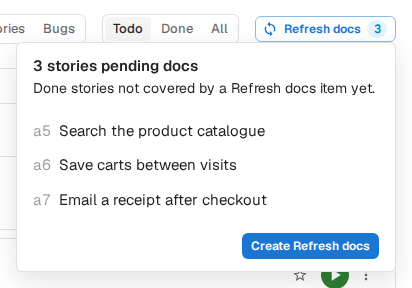
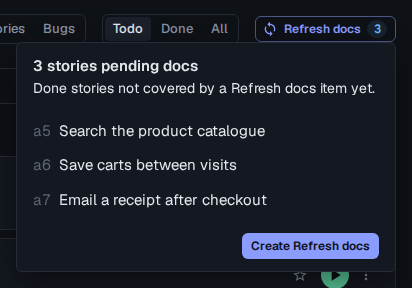
To queue one now, click Refresh docs at the top of the Backlog tab. It counts the done stories no refresh covers yet; click Create Refresh docs in its popover to queue a story for them. While a refresh is open, the button links to it instead.
Reviewing a refresh
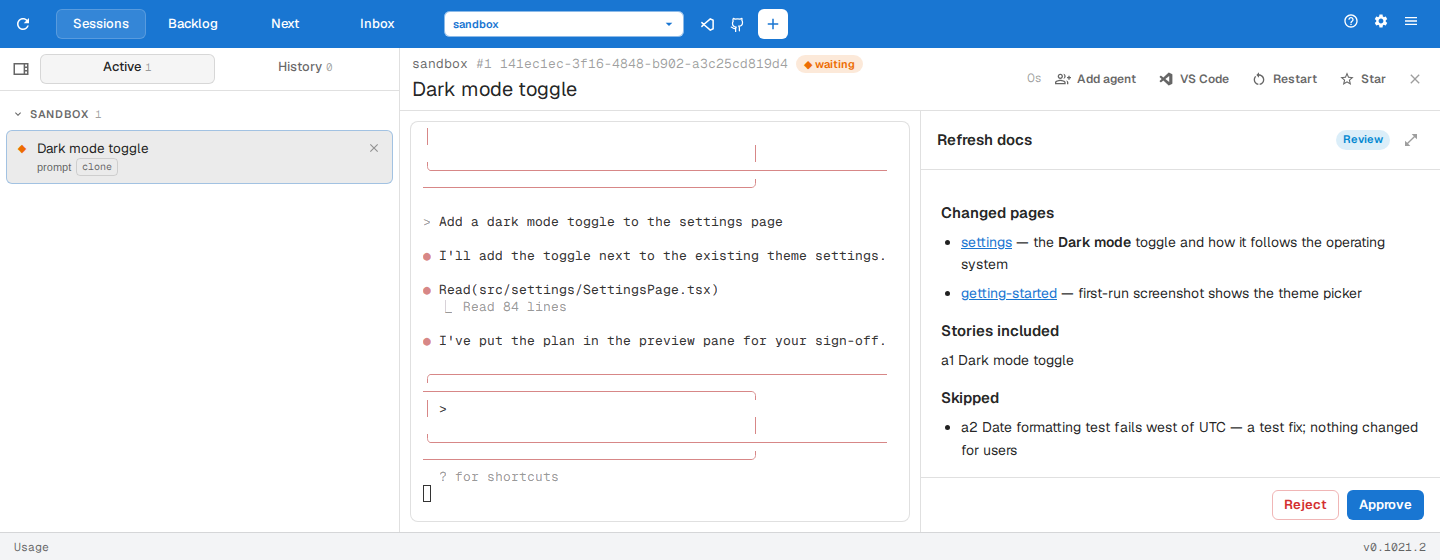
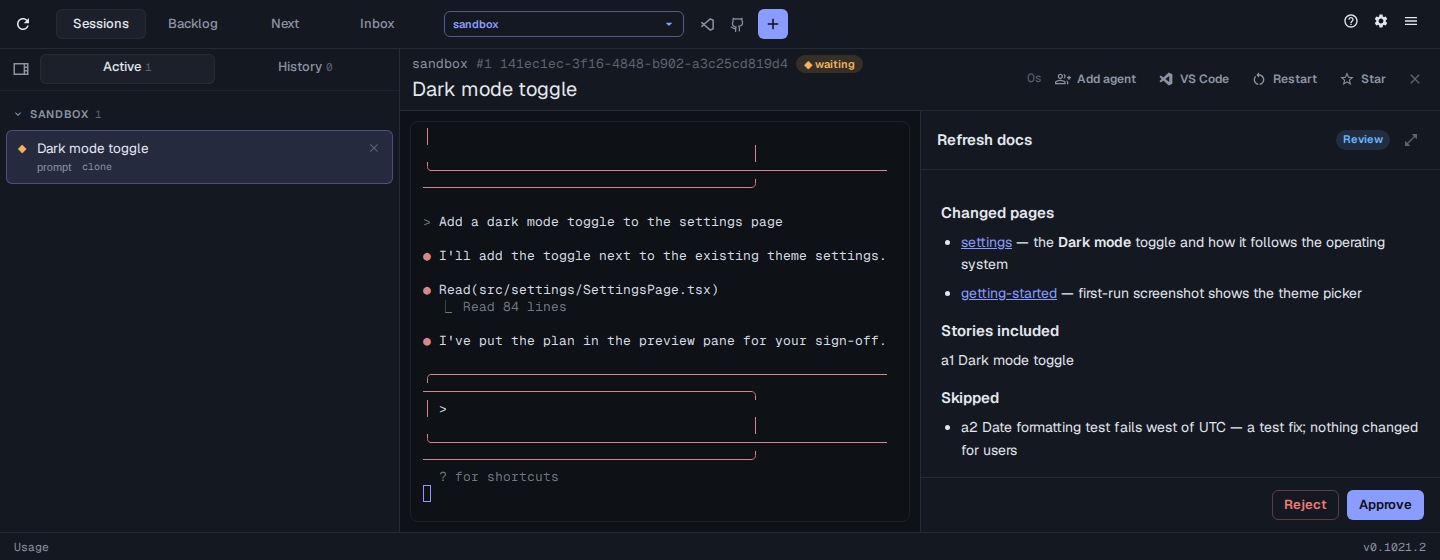
Section titled “Reviewing a refresh”Run the Refresh docs story like any other. The agent reads each covered story and its commits, updates the pages for what changed for users, and asks you to approve the changes, listing each changed page with a link to it in the docs preview at http://localhost:4173.
In assist’s docs preview, uncommitted changes are highlighted: added and changed text in green, removed text struck through in red, and changed pages marked with a dot in the sidebar. Step through the changes with the bar at the bottom of each changed page, which carries on to the next changed page.