
Sessions dashboard
The dashboard
Section titled “The dashboard”The Sessions page is where you run and watch coding agents. The sidebar on the left lists every live session as a card, grouped by repo, and the session area on the right shows the selected session’s terminal.
A session is either an agent (Claude, Codex or pi) working on a prompt or an assist command such as /draft, or a run session that executes one of the repo’s run entries, such as a dev server.
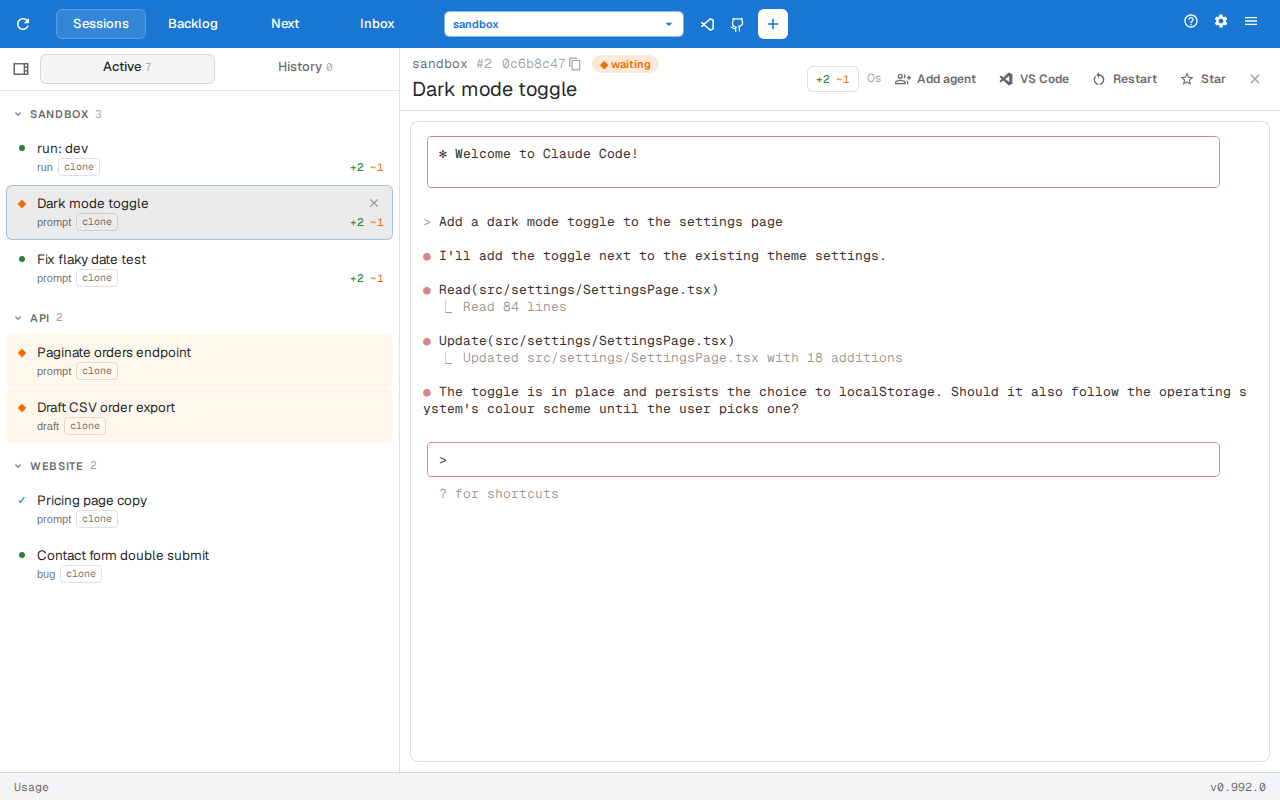
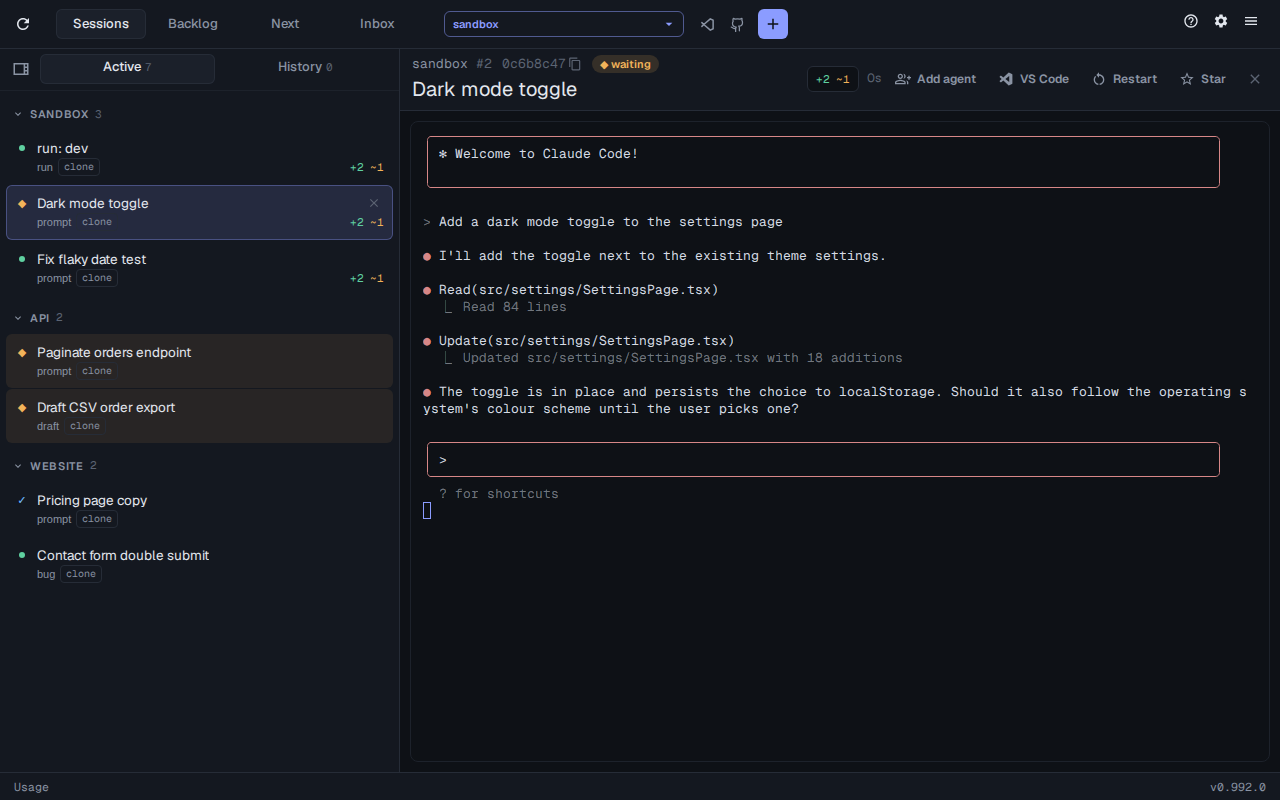
Here the sandbox repo has three sessions, so they share a group: an agent waiting on an answer, a dev server and an agent still working. The api repo has a /draft session asking a question about a new backlog item, and the website repo has a /bug session filing a bug.
Starting it
Section titled “Starting it”assistThis starts the web server on port 3100 and opens it in your browser. assist sessions web --port <n> picks another port, and --no-open skips the browser.
The toolbar
Section titled “The toolbar”

From left to right:
- Refresh restarts the web server. Sessions keep running.
- Tabs:
- Repo picker (⌥AltR) chooses the repo the toolbar acts on. It lists the repo the web server started in plus every repo a session has run in; type to filter. Selecting a card switches it to that card’s repo.
- VS Code opens the selected repo in VS Code, and GitHub opens it on GitHub.
- + (⌘CtrlN or ⌥AltN) opens the new-session dialog (see Creating sessions).
- A PRs menu appears when the repo has open pull requests, and a run menu when the repo has
runentries. - Help opens these docs in a new window.
- The cog (⌥AltW) opens the Config page.
- The menu (⌥AltE) holds the rest.
Every shortcut can be changed, see Keyboard shortcuts.
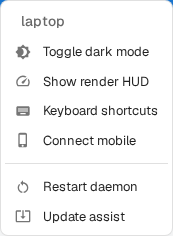
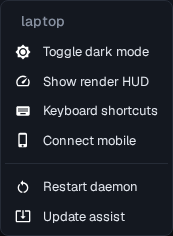
The menu has Toggle dark mode, Show render HUD, Keyboard shortcuts, Connect mobile (for the experimental iOS app), Restart daemon and Update assist. Restart and update both ask before acting.
The status bar
Section titled “The status bar”The bar along the bottom of every page holds:
- The usage figures on the left, your current 5-hour and 7-day usage per harness. Hover them for the breakdown, or click to open the Usage page.
- A failed requests count, when requests from the page have failed. Click it to list them, with each one’s time, path, machine and outcome, and Clear to empty the list.
- The version badge (⌥AltQ) on the right, which shows how many updates are ready and opens the Updates page.
Releases and News
Section titled “Releases and News”The Releases and News tabs appear only once they’re set up, so they aren’t in the screenshot. They sit between Next and Inbox, so with both shown they take ⌥Alt4 and ⌥Alt5 and Inbox moves to ⌥Alt6.