
Getting started
Install
Section titled “Install”assist is published to npm. Install it globally, then sync its commands and settings into your coding harness:
npm install -g @staff0rd/assistassist syncThe CLI is available as assist, and also as the shorter aliases ast and a.
assist sync installs every assist Claude command as ~/.claude/skills/<name>/SKILL.md, so it takes precedence over a project skill of the same name, and copies assist’s settings.json into ~/.claude. When the Codex or pi CLIs are installed it also installs the commands and permission hooks for them. Inside Claude Code, /sync does the same thing.
Sync asks before overwriting an existing settings.json. Pass --yes to skip the prompt once, or make it permanent with:
assist config set sync.autoConfirm trueSet up the database
Section titled “Set up the database”assist keeps your backlog, usage and per-repo settings in a Postgres database, and won’t start without one. Any Postgres works: one running locally or in Docker, or a managed one such as Supabase or Neon. Set its connection string, then create the tables:
assist config set database.url postgresql://user:password@host:5432/databaseassist db migrateThe ASSIST_DATABASE_URL environment variable works too, and takes precedence. Point every machine you use at the same database and they share one backlog.
Open the dashboard
Section titled “Open the dashboard”From a terminal in one of your repos, run:
assistThis starts the assist dashboard on port 3100 and opens it in your browser. The dashboard is where you start coding agents, watch them work and answer them. Add --no-open to start it without opening a browser.
Start your first session
Section titled “Start your first session”Press + in the toolbar (or ⌘CtrlN) to open the new-session dialog.
- Choose prompt.
- Pick the repo the agent should work in.
- Type what you want done and press Enter.
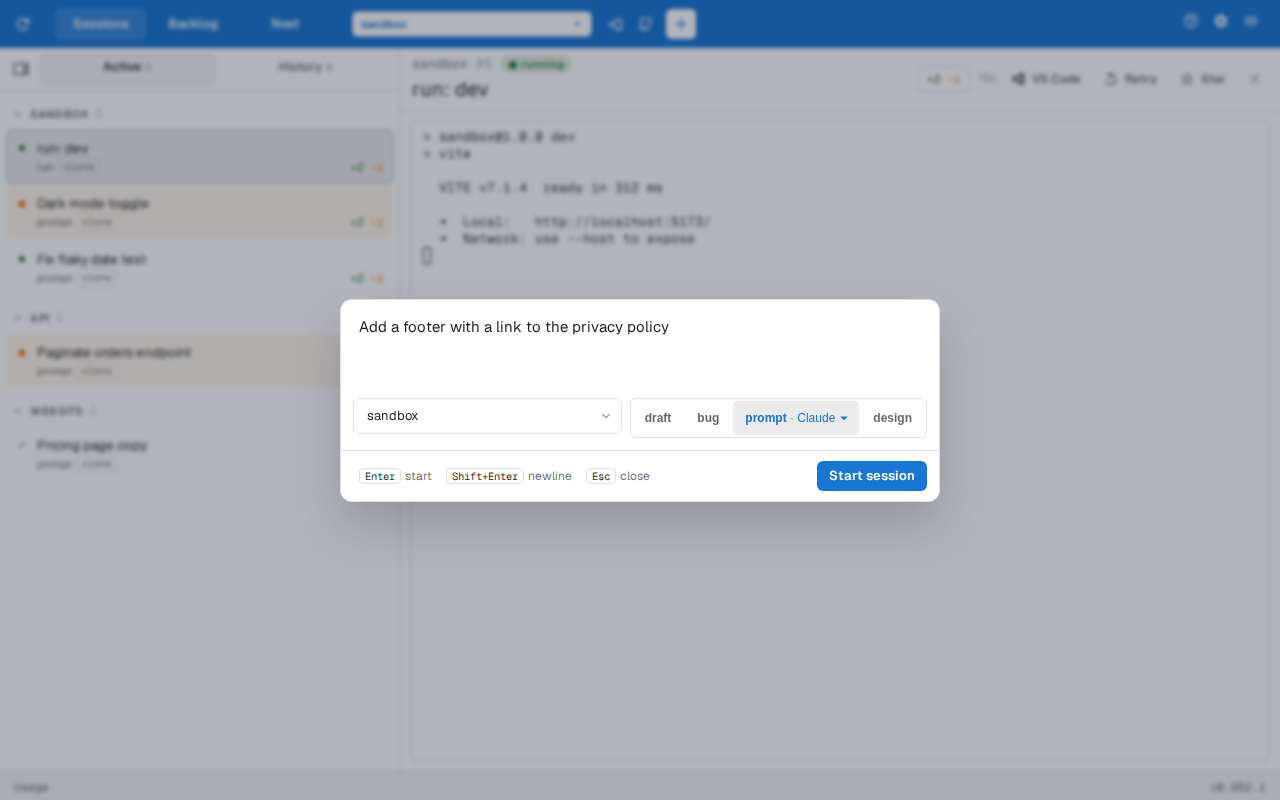
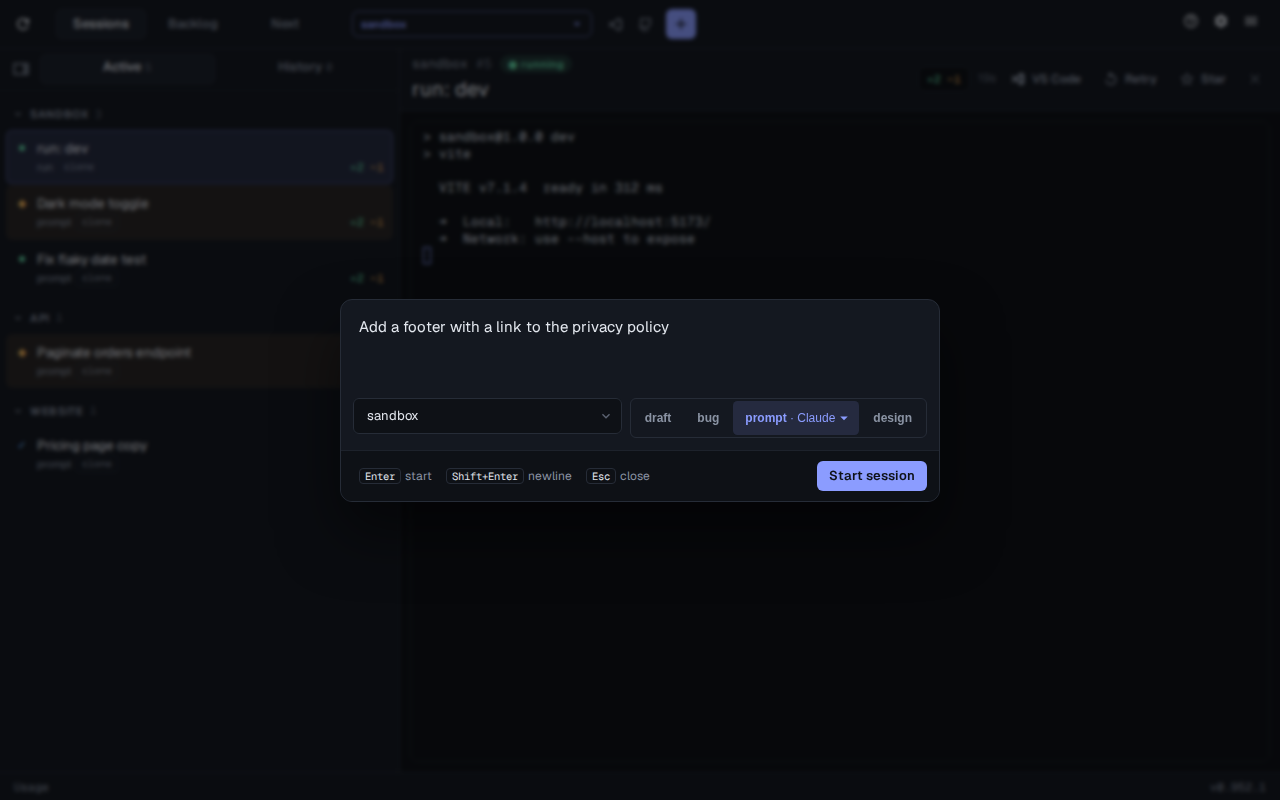
The other modes start assist commands rather than a plain prompt: draft turns your description into a backlog item and bug files a bug report. See Creating sessions, and why assist keeps its own backlog rather than using Jira or GitHub issues.
Next steps
Section titled “Next steps”- Sessions dashboard — the rest of the dashboard: the toolbar, tabs and run sessions.
- Sidebar and cards — what a card shows and how to close, find and reopen sessions.
- Parallel work — several agents on one repo without them colliding.
- Updating assist — keeping assist up to date.