
Sidebar and cards
Session cards
Section titled “Session cards”Each card shows a status glyph, the session’s title and a line of details.
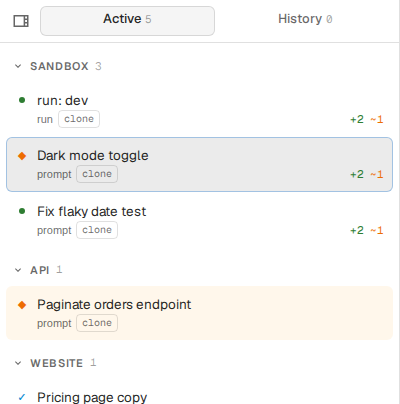
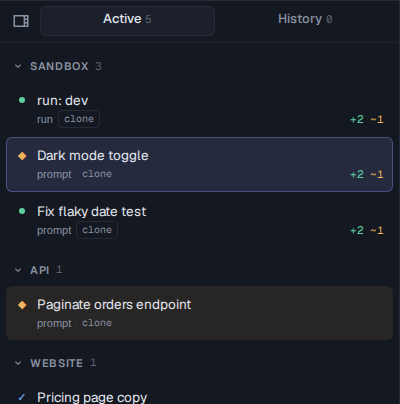
| Glyph | Status |
|---|---|
| running | Running: the agent is working, or the run is live |
Running assist verify |
|
| waiting | Waiting on you: an answer, a permission prompt or a preview to approve |
| done | Done |
| error | Exited with an error |
| stopped | Stopped, holding unpushed work (see Parallel work) |
The detail line shows the repo, then the session type or, for a backlog run, the phase it is on, followed by any pull request, backlog item and issue it is linked to, and any badges:
| Badge | Shown when |
|---|---|
| The session runs in the repo’s own clone rather than a worktree | |
| Codex | The session runs a harness other than Claude |
| serving :5173 | The session is a dev server, linking to its port |
| laptop | The session runs on a linked machine |
Grouping and order
Section titled “Grouping and order”Cards are grouped by repo. A repo with one session shows a lone card; two or more get a group header with a count, which collapses the group, and an × on hover that closes every session in it. Sessions a backlog run launches nest under that run’s card.
Starred sessions, and the groups holding them, come first; everything else keeps the order it started in. ⌘Ctrl. jumps straight to the next waiting session.
A group you collapse stays where it is, marked with a pin, until you open it or a new session starts in it.
The button at the left of the tab row hides the sidebar; the same button then appears in the toolbar to bring it back.
Closing a session
Section titled “Closing a session”The × on a card ends the session. A finished session is dismissed straight away; anything still live asks first, because closing kills its process. A card with nested sessions offers to close just itself or all of them. An agent can also close its own session: /close has it check its work is finished first.
When the session holds unpushed work, closing stops it instead of removing it. The card stays, greyed, with Restart and a discard button that either throws the changes away or just drops the card, leaving the files on disk.
History
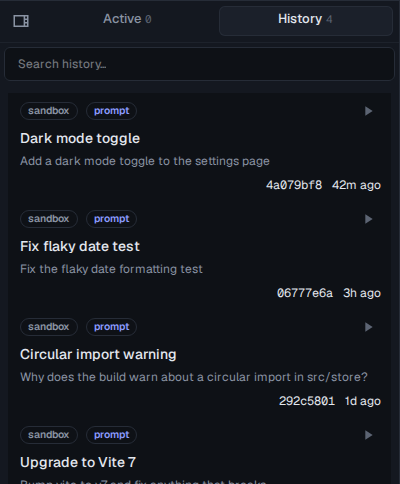
Section titled “History”The History tab lists past sessions in the selected repo. The search box searches their transcripts and shows a snippet of each match.
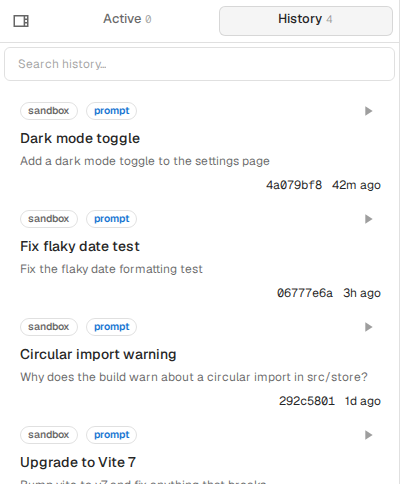
Clicking an entry shows its transcript, and Resume starts it again as a live session.