
Pull requests
Raising a pull request
Section titled “Raising a pull request”Run /pr in a session once its work is committed. The agent writes a short title and a description of what changed and why, and opens them in the preview pane. Comment on them to have them reworded, or approve to raise the pull request.
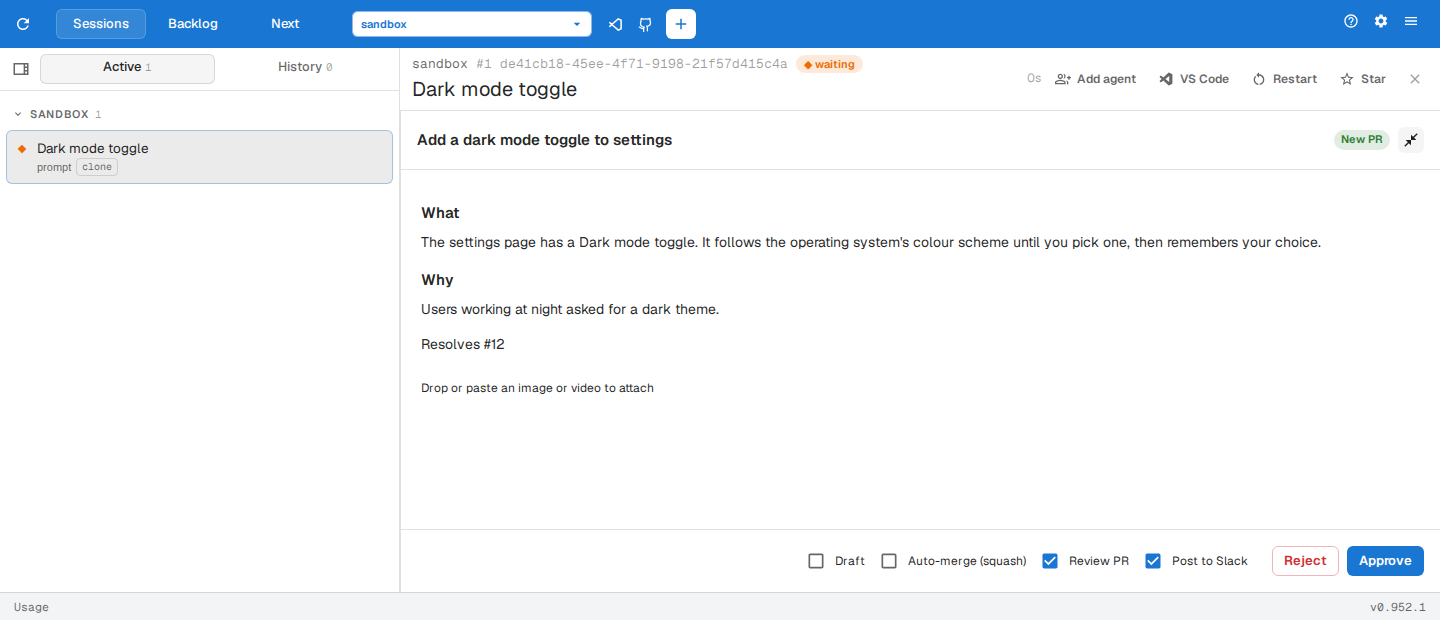
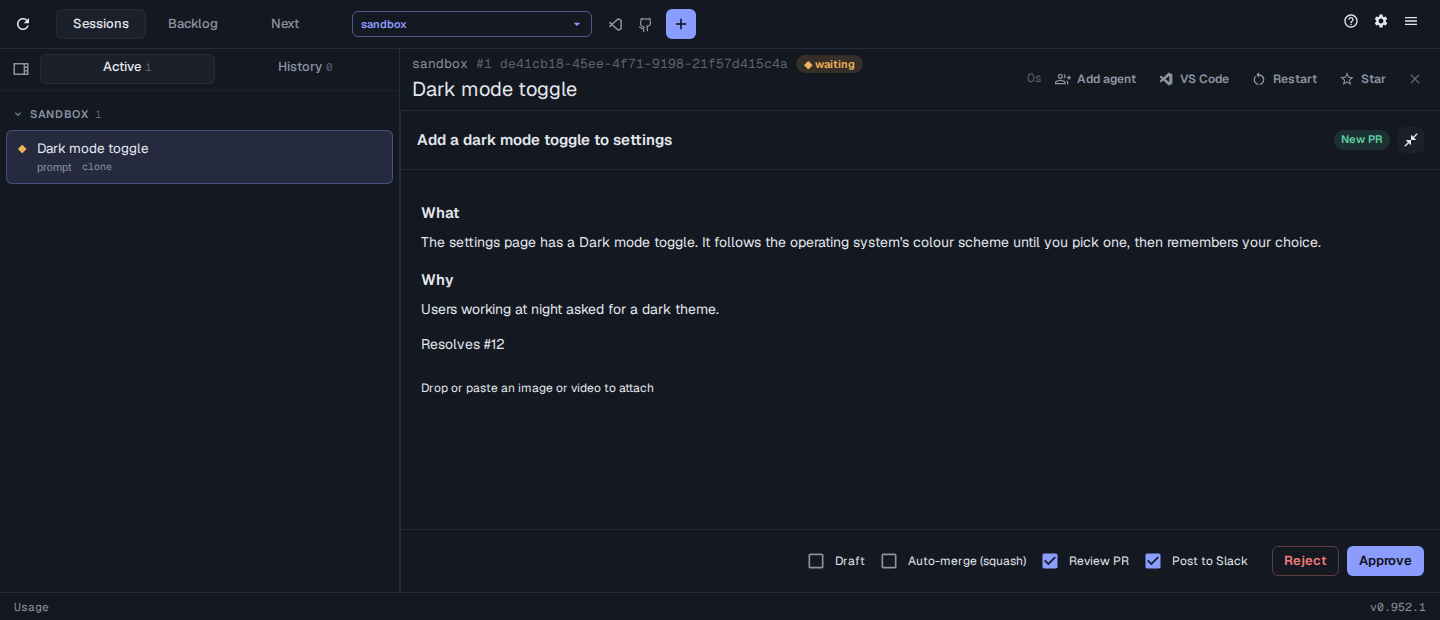
Ask the agent to change a raised pull request’s description and the revision opens in the pane the same way.
Pull requests are raised ready for review. To raise them as drafts unless you tick otherwise:
assist config set prs.draft trueTo have /pr ask which issue the pull request resolves, so the description links to it:
assist config set prs.promptJira trueassist config set prs.promptGithub trueA session with a pull request has a PR button on its card and in its top bar that opens it on GitHub.
The PRs menu
Section titled “The PRs menu”When the selected repo has open pull requests, the dashboard toolbar has a PRs menu. Filter the list by title, number or author, and pick one to act on it in a new session. It offers the same review and Address Comments items as a session’s Review menu, plus:
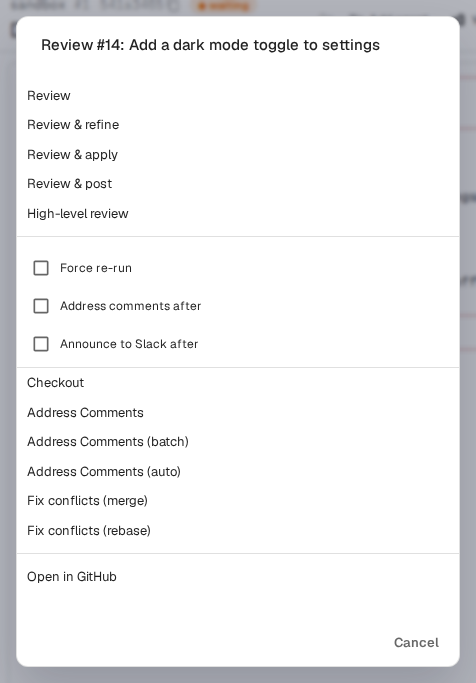
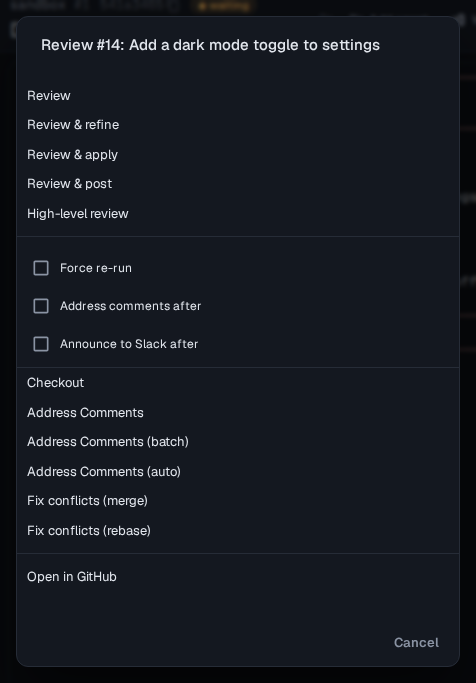
- Checkout checks it out and leaves an agent waiting in it for your prompt.
- Fix conflicts resolves its merge conflicts.
- Open in GitHub opens it in your browser.
Announcing in Slack
Section titled “Announcing in Slack”Run /prs-slack <number> to post a pull request’s title and link to your team’s Slack channel. Set the channel:
assist config set prs.slack "#pull-requests"Without it, the channel in slack.channel is used.
Reporting open pull requests
Section titled “Reporting open pull requests”Run /prs-status [channel] <owner/repo>... for an overview of what is still waiting to merge across those repos, grouped into pending review, changes requested, failing checks and ready to merge, with stale ones called out. It opens in the preview pane, and once approved it is posted to the Slack channel, or to slack.channel when none is named.