iOS app
experimental The iOS app is still being worked out, and its screens and features may change or be removed.
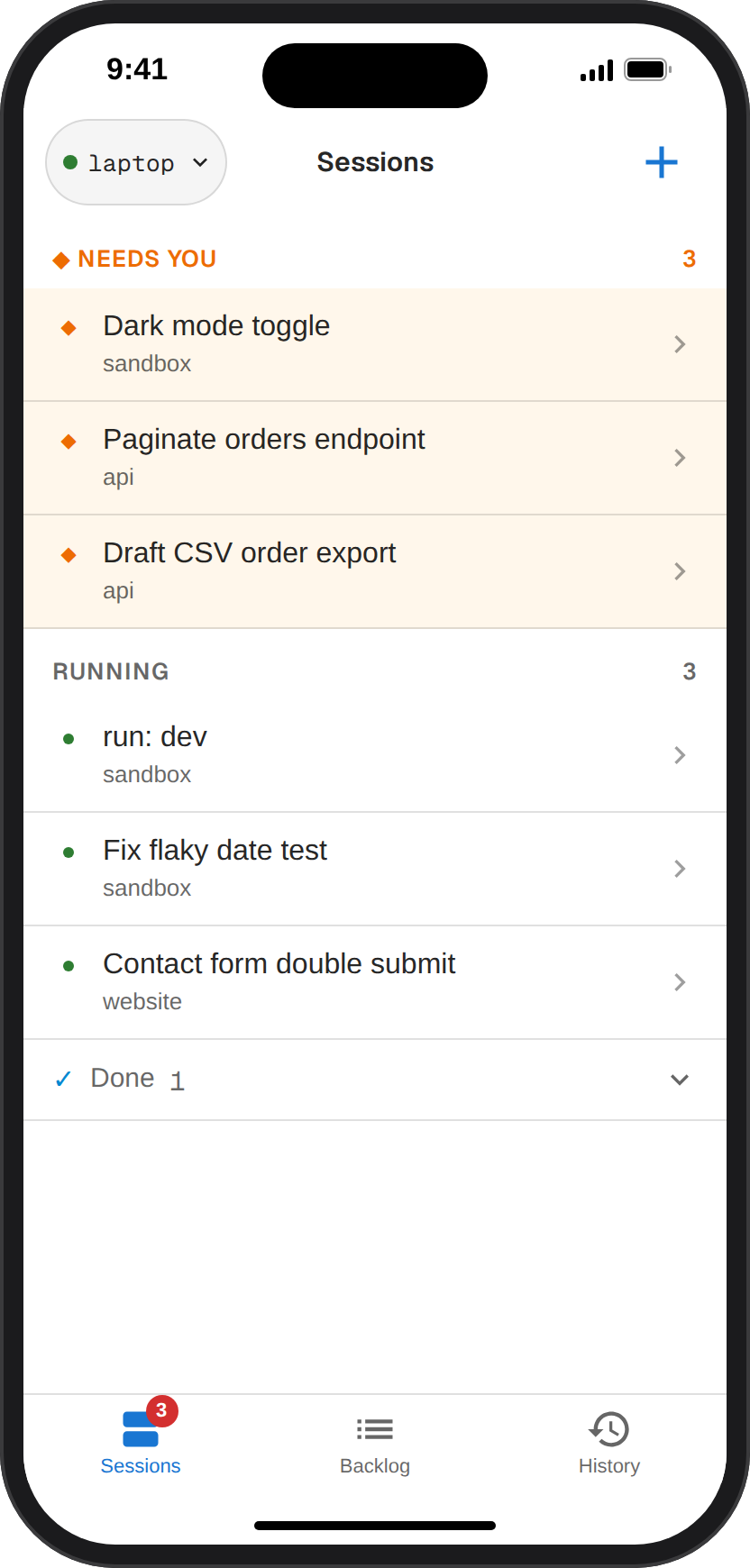
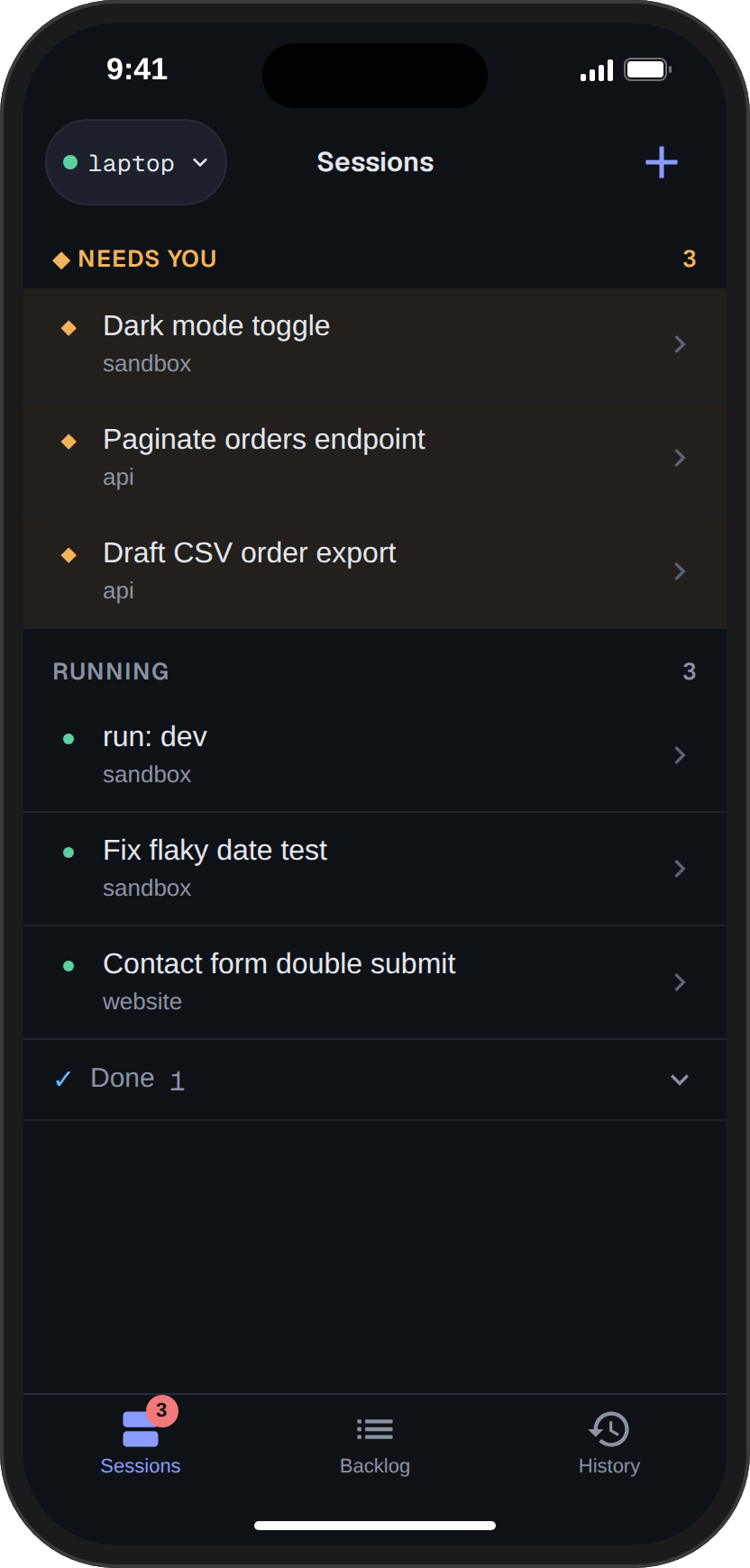
The assist iOS app shows your sessions on your phone: see which agents are waiting on you, read their terminals, reply and answer their questions, away from your desk. It connects to one of your web servers over Tailscale and shows that machine’s sessions along with those of every linked machine.
Installing
Section titled “Installing”The app is distributed through TestFlight. Install TestFlight on your iPhone, accept your tester invite, then install assist from TestFlight.
Connecting to a home node
Section titled “Connecting to a home node”The machine the app connects to is its home node. Before connecting, connect Tailscale on the phone and link the machine over Tailscale so its web server is reachable on your tailnet.
On first launch, enter the address you open the dashboard at in a browser as the Web server URL, such as https://mac.tail1234.ts.net:3100, and press Connect. Name is filled in from the host name and labels the node chip at the top of the session list.
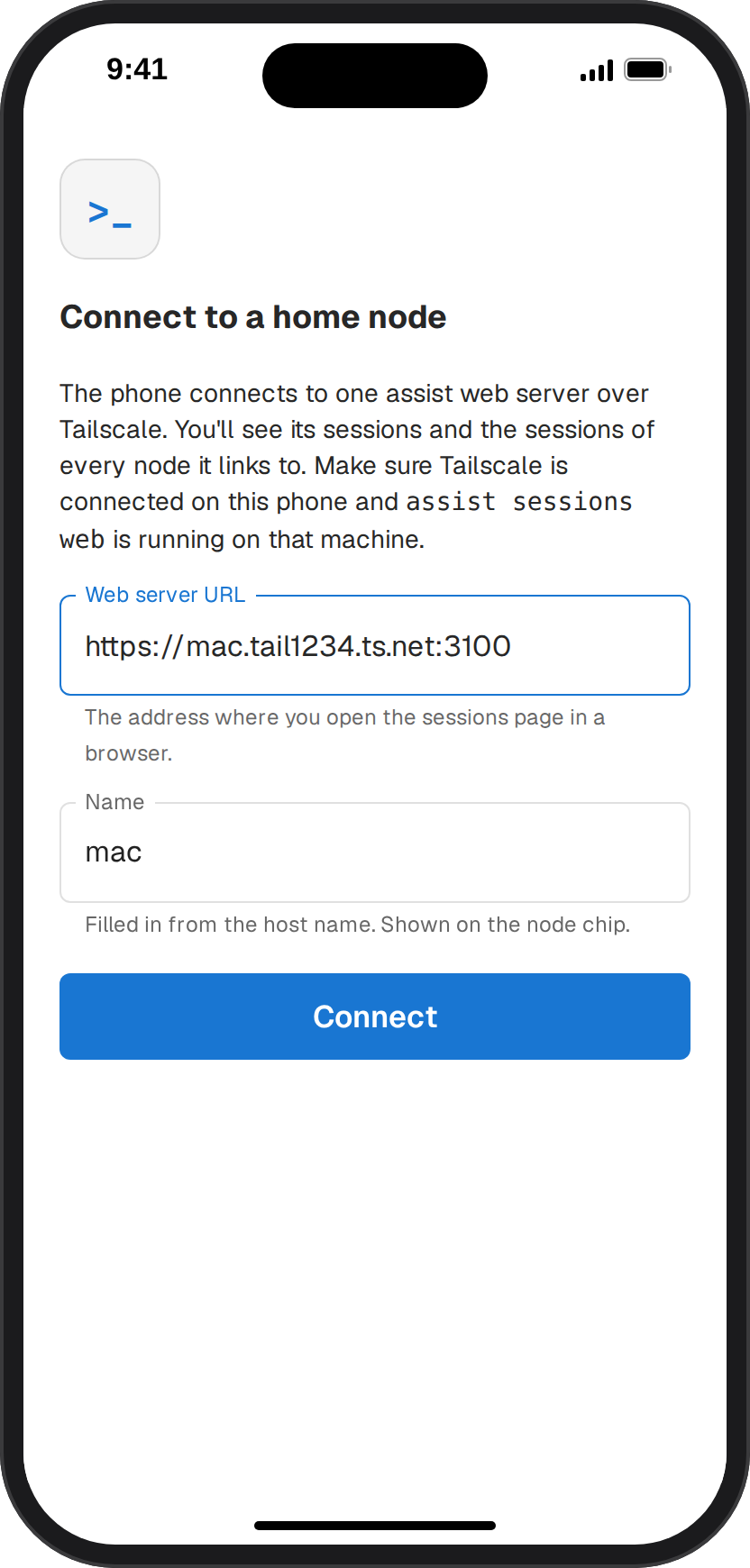
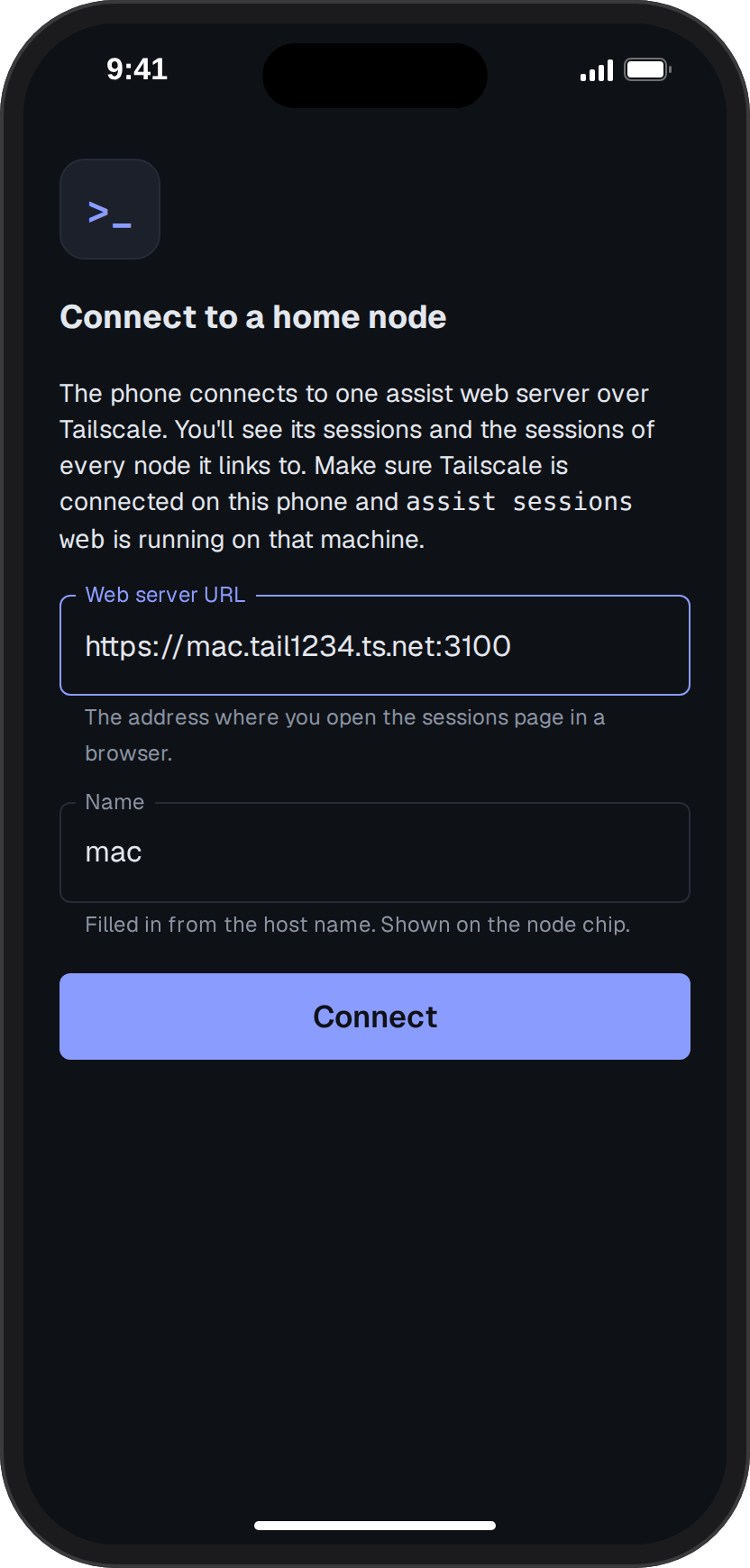
To skip typing the address, open Connect mobile from the dashboard’s menu on that machine and scan its QR code with the iPhone camera. The app adds the machine and makes it the home node.
Switching nodes
Section titled “Switching nodes”Tap the node chip to list your saved nodes. Tap one to make it the home node, the pencil to edit it, or Add node URL to save another. The app remembers your choice across launches.
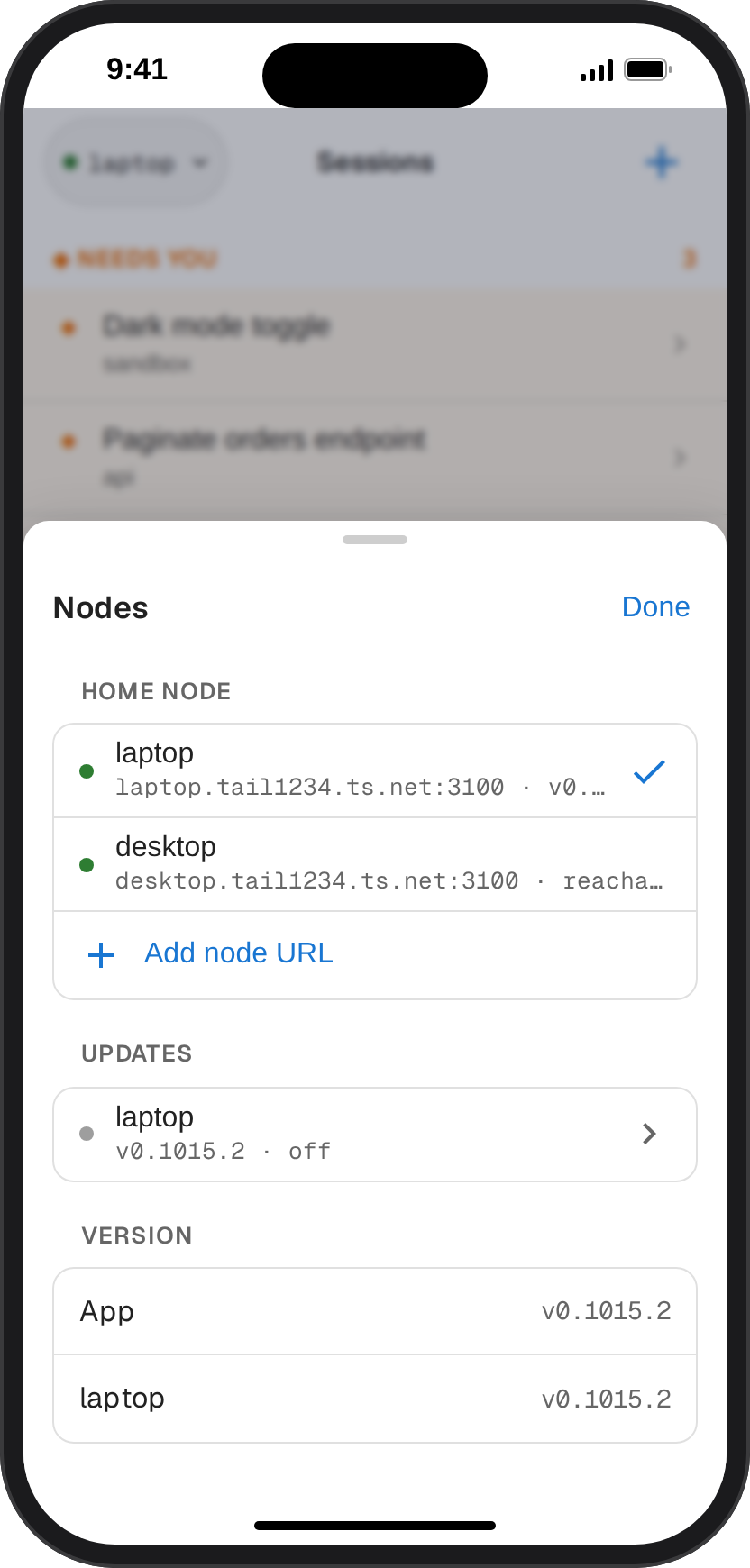
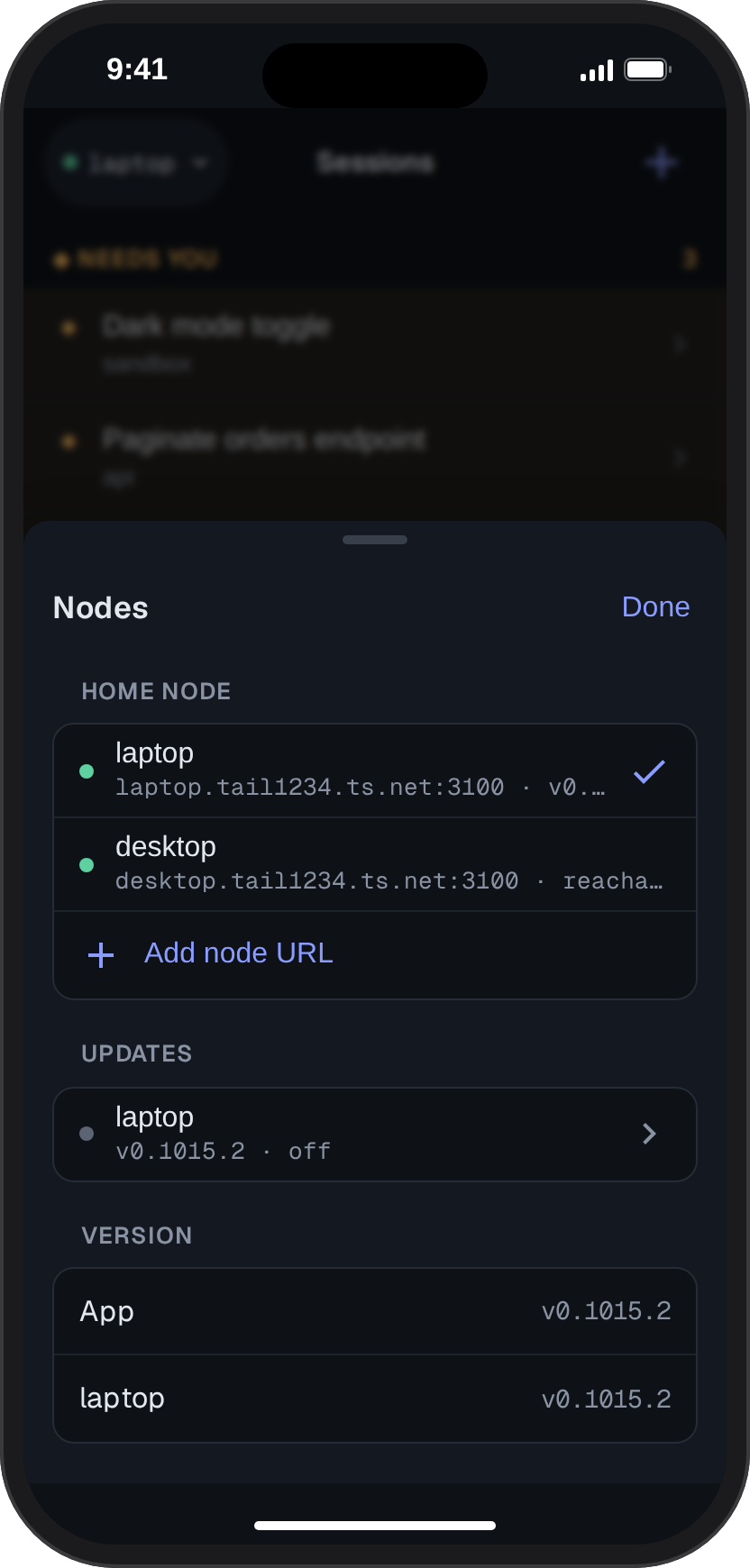
When the home node can’t be reached, the app shows the error. Press Retry now, or pick another node under Switch home node.
Getting around
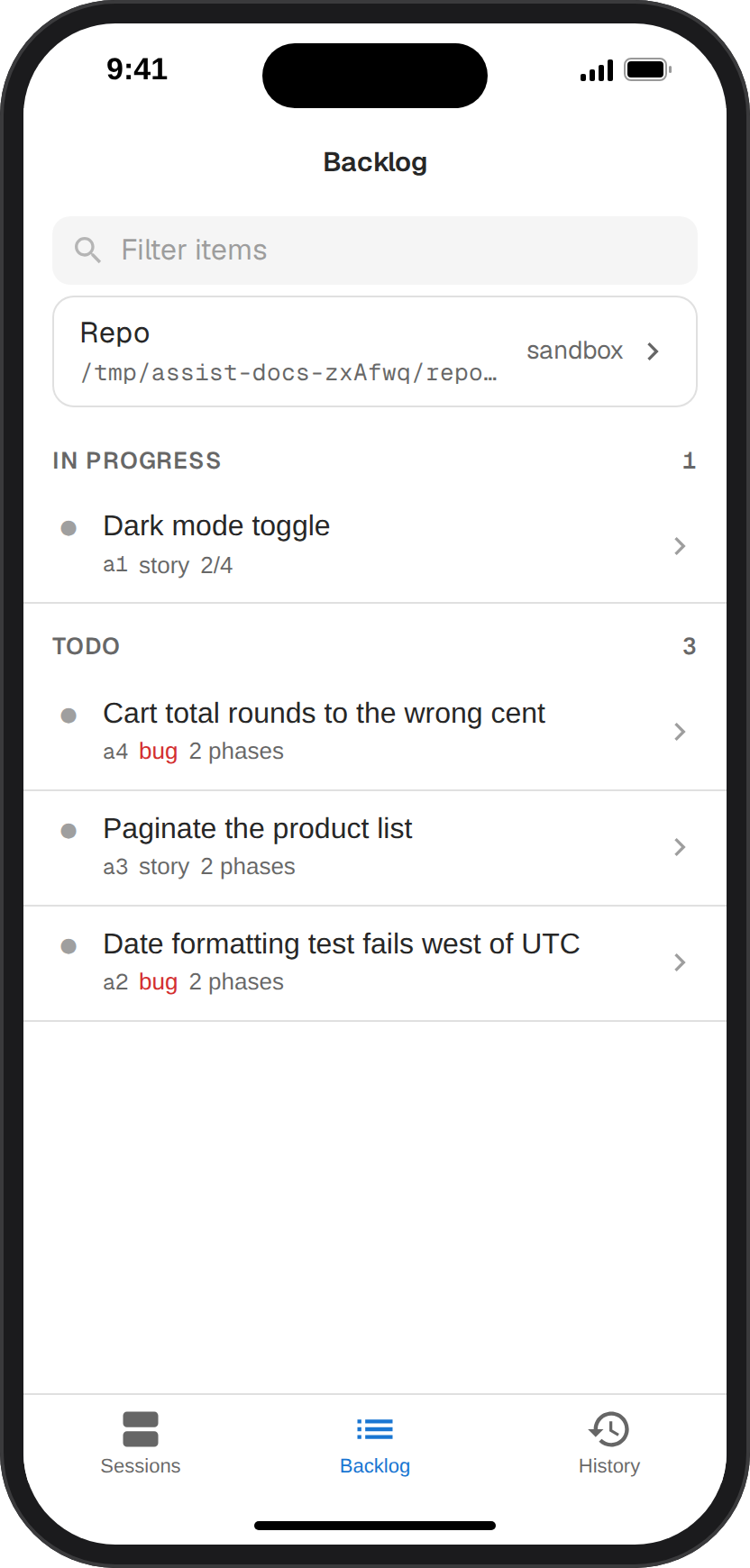
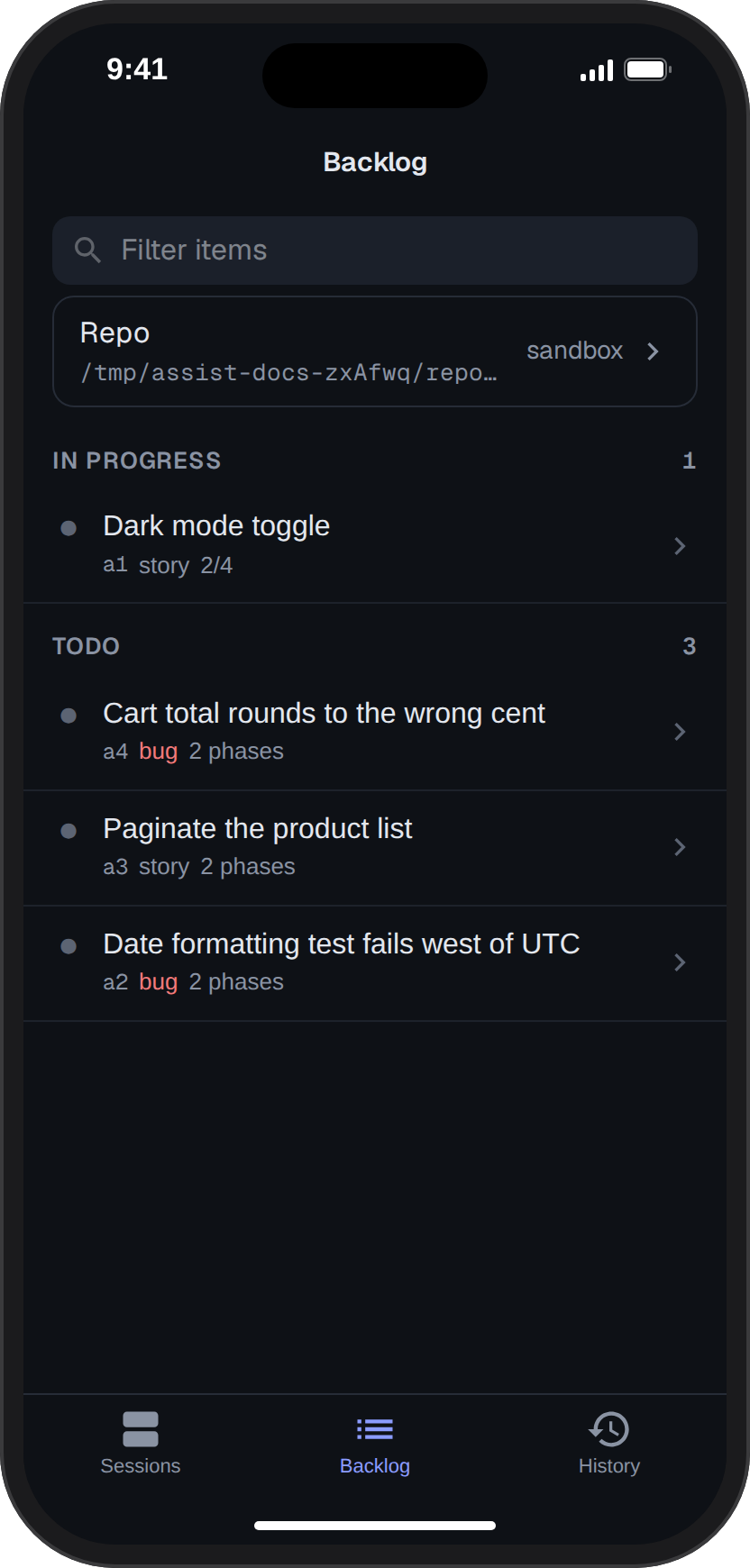
Section titled “Getting around”The tab bar along the bottom switches between Sessions, Backlog and History. Each tab keeps its place, so switching back returns to the screen you left; tap the active tab to return to its list.
Acting on a session
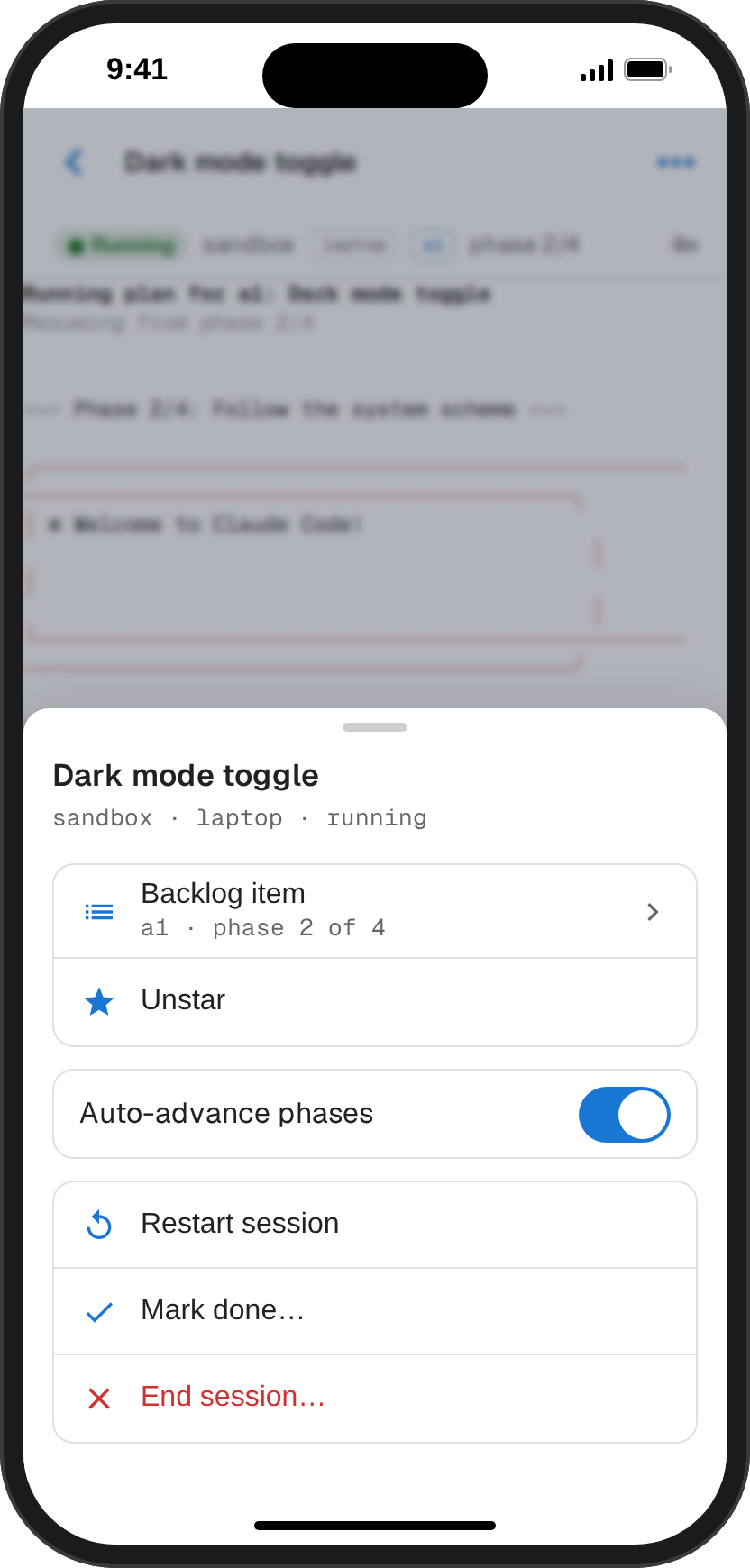
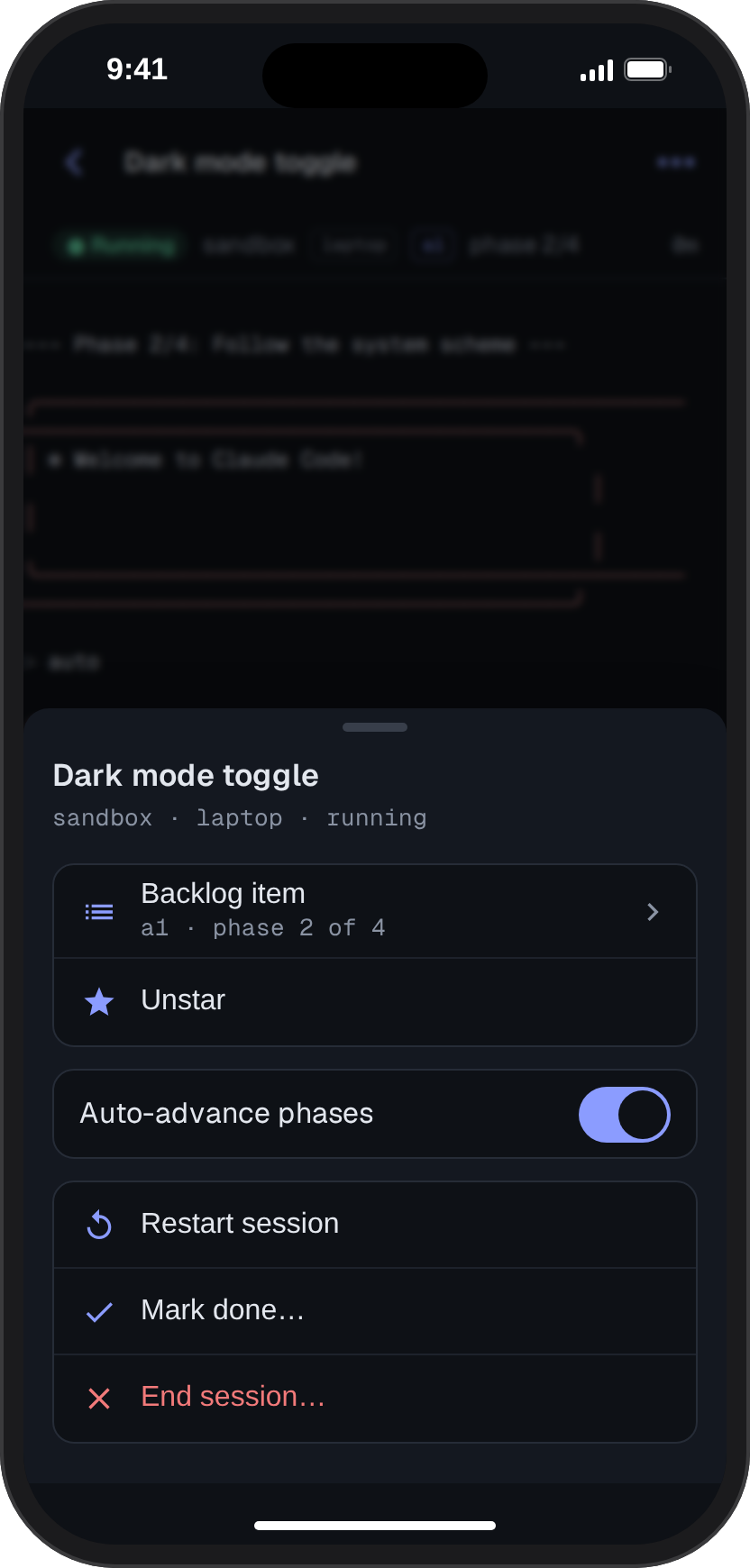
Section titled “Acting on a session”Tap ⋯ on a session’s screen, or long-press its row in the list, for its actions. On a backlog item’s session, Mark done… marks the item done and ends the session once you confirm.