
Preview panes
When an agent has something for you to approve or read, it opens a preview pane beside its terminal: a proposal or decision to approve, a pull request, a backlog item or comment to create, or links and snippets to copy.
Working in a pane
Section titled “Working in a pane”- The width toggle in the pane’s header widens it over the terminal or shrinks it back beside it.
- ⌥AltD moves focus to the pane’s main button, such as Approve, and pressing it again returns to the terminal with the pane left open.
- Approve accepts what is shown and the agent carries on. Reject turns it down, and the agent revises it and shows you the next version.
Commenting
Section titled “Commenting”Drag across text in the pane to select it, type a note, then:
- Send to agent types the note, quoting the selected text, straight into the session.
- Add to review adds the note to the list above the pane’s buttons. Request changes sends every note in the list back to the agent together, each with the text it quotes, for the agent to revise and show you again.
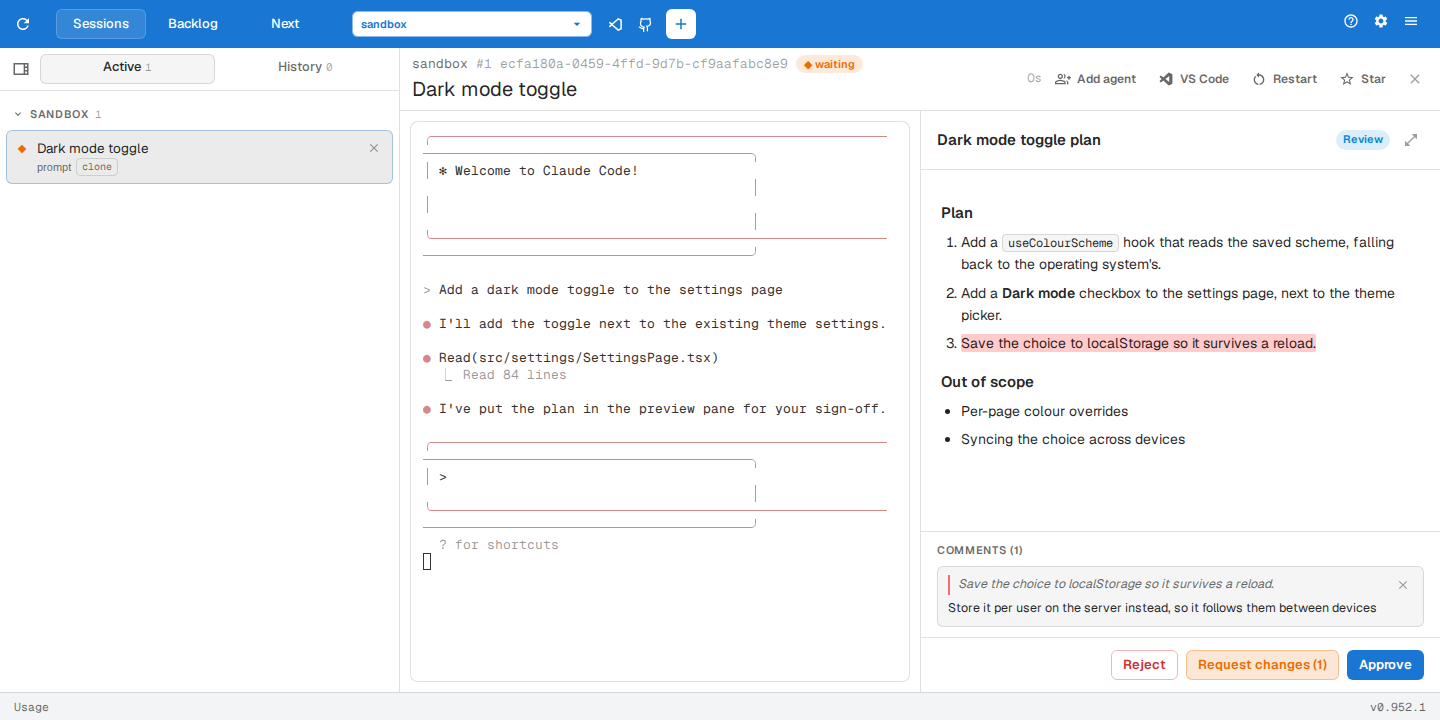
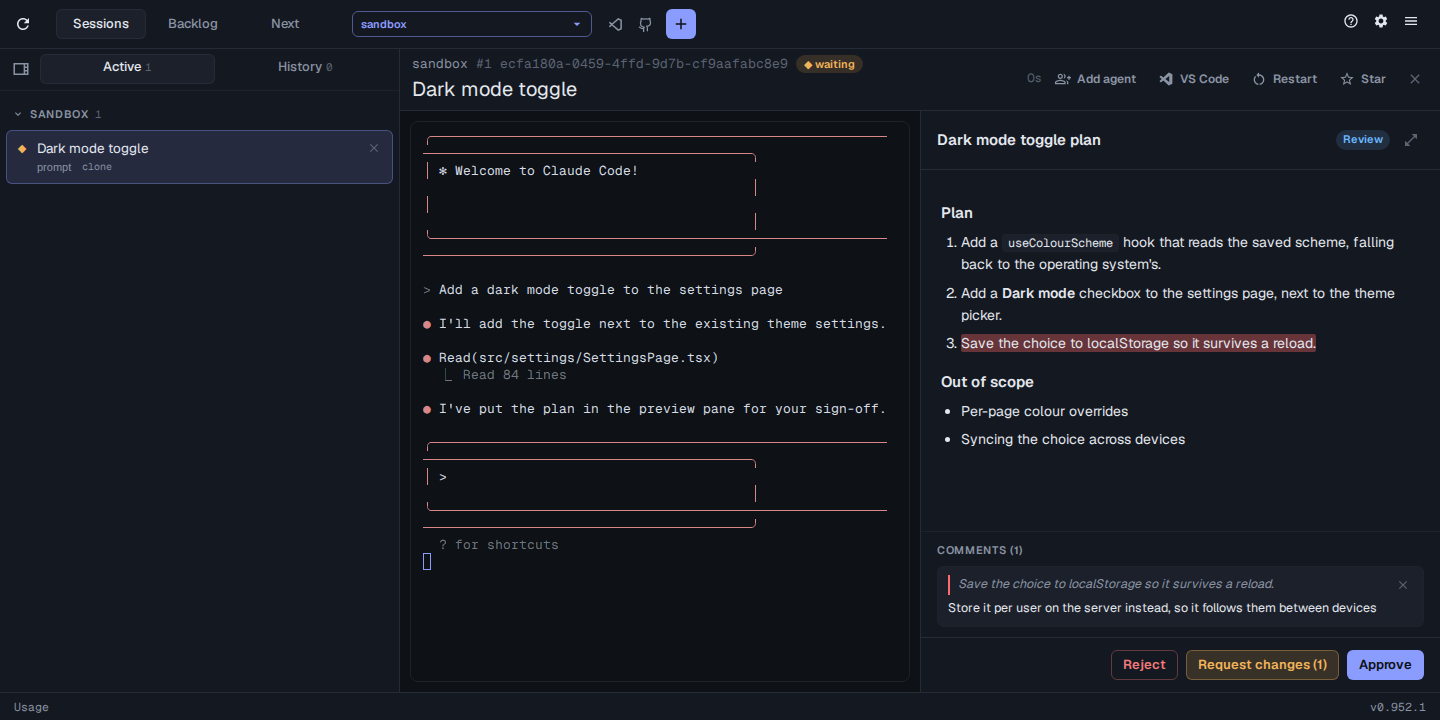
As in the diff, Cite a broken rule and Add rule turn a comment into a rule fix or a new rule.
Getting your approval
Section titled “Getting your approval”Ask the agent to /ask about something and it puts a proposal, summary or decision in the pane and waits. Approve it and the agent goes ahead, acting on any comments you added; reject it and the agent revises it and asks again.
Answering questions
Section titled “Answering questions”Turn on assist config set sessions.askQuestion true and questions the agent asks you open in the pane as a form instead of in the terminal. Pick one option, or several where the question allows it, or choose Other and type your own answer, then press Answer. Dismiss declines to answer.
Showing links and snippets
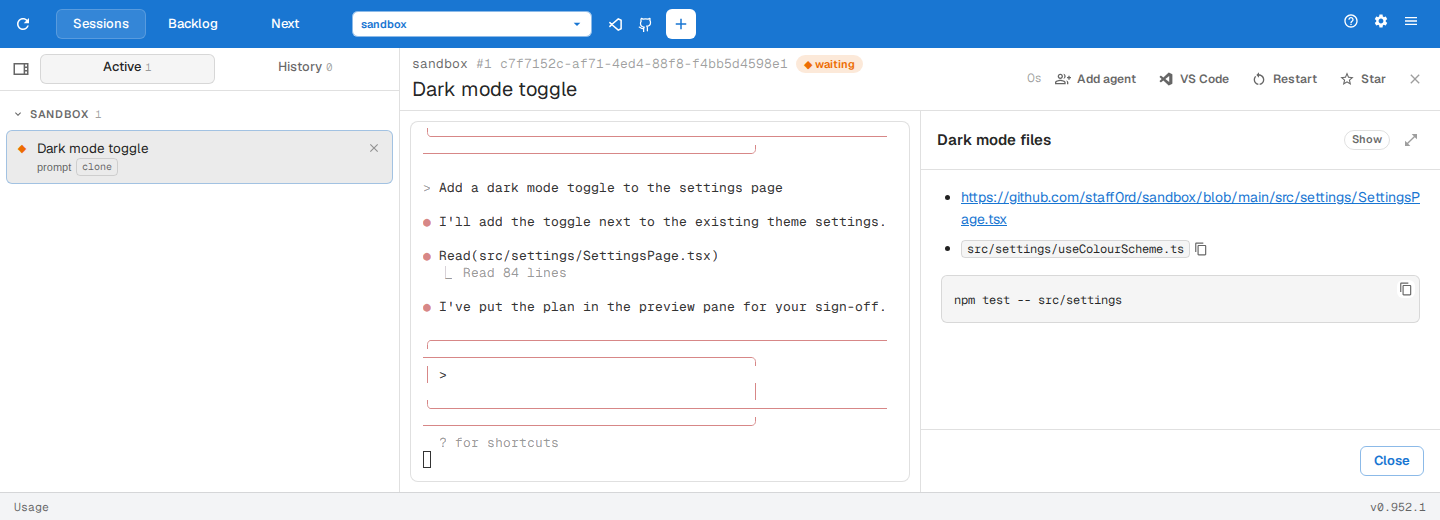
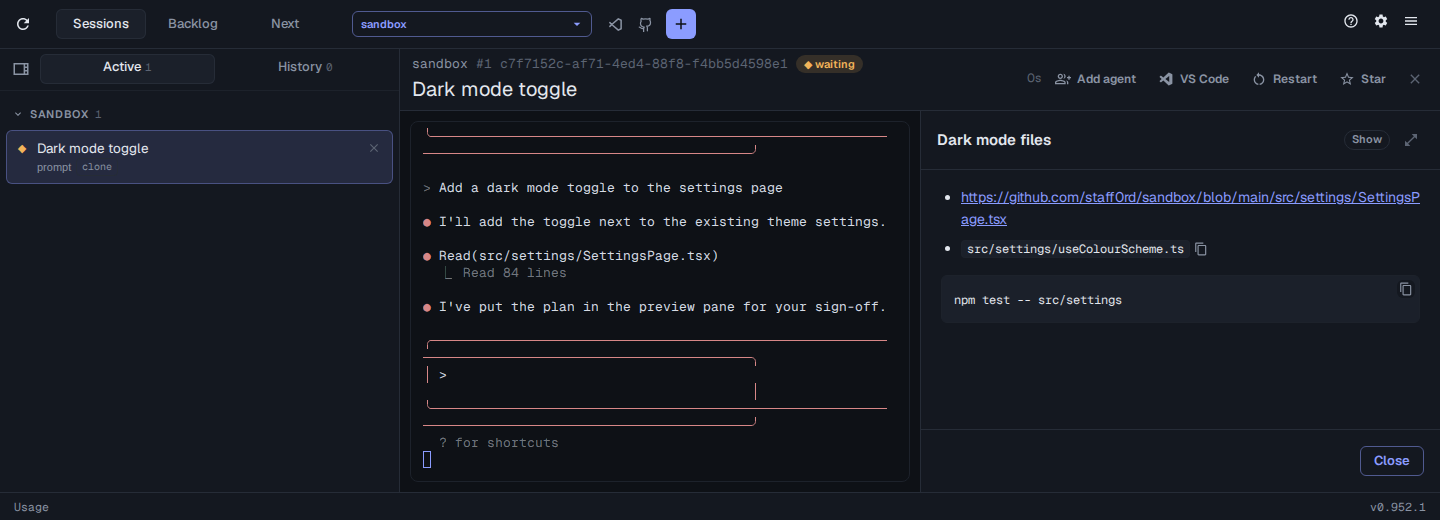
Section titled “Showing links and snippets”Long links, paths and commands wrap in the terminal and break when you click or copy them. Ask the agent to /show them and they open whole in the pane.
Proposing a backlog item
Section titled “Proposing a backlog item”When /draft or /bug has written an item, the whole item, with its description, acceptance criteria and plan, opens in the pane.
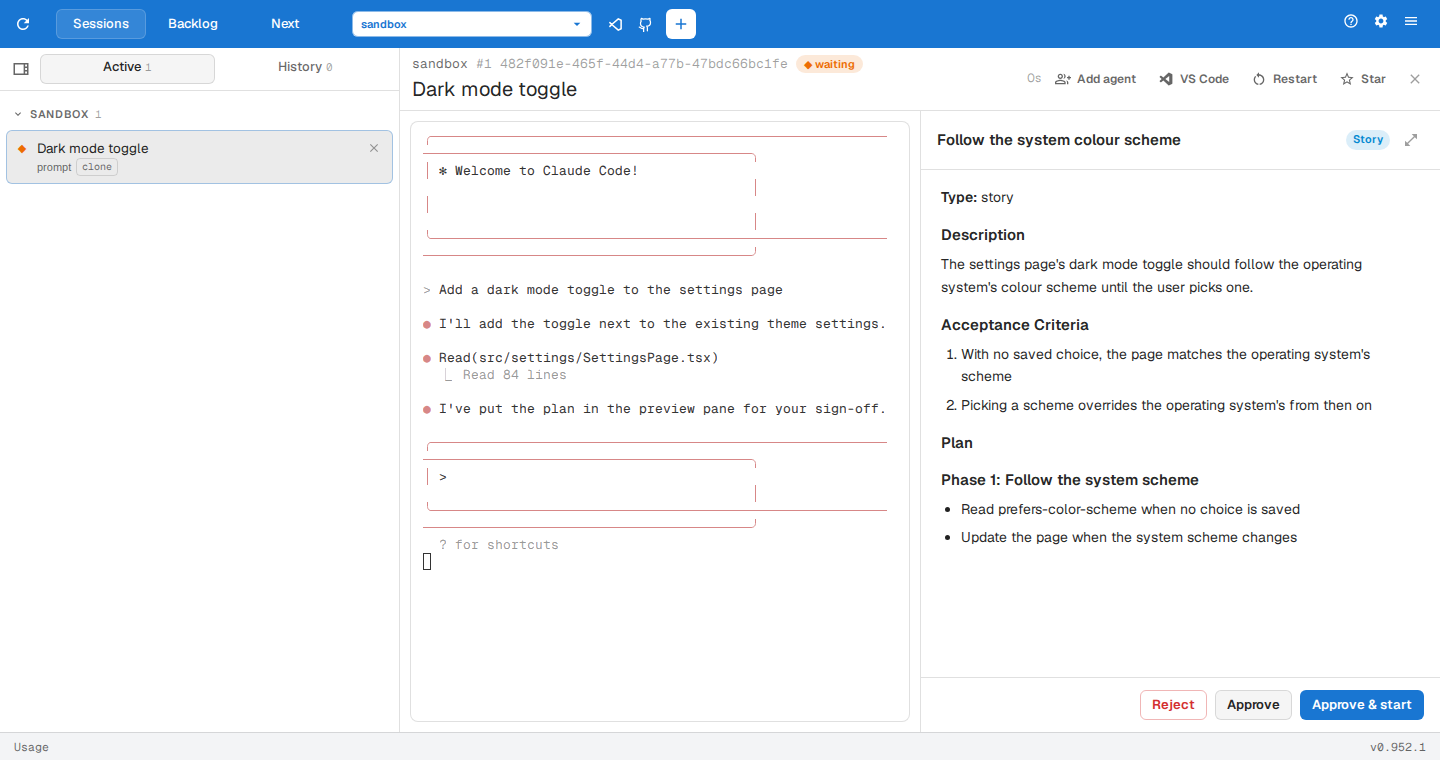
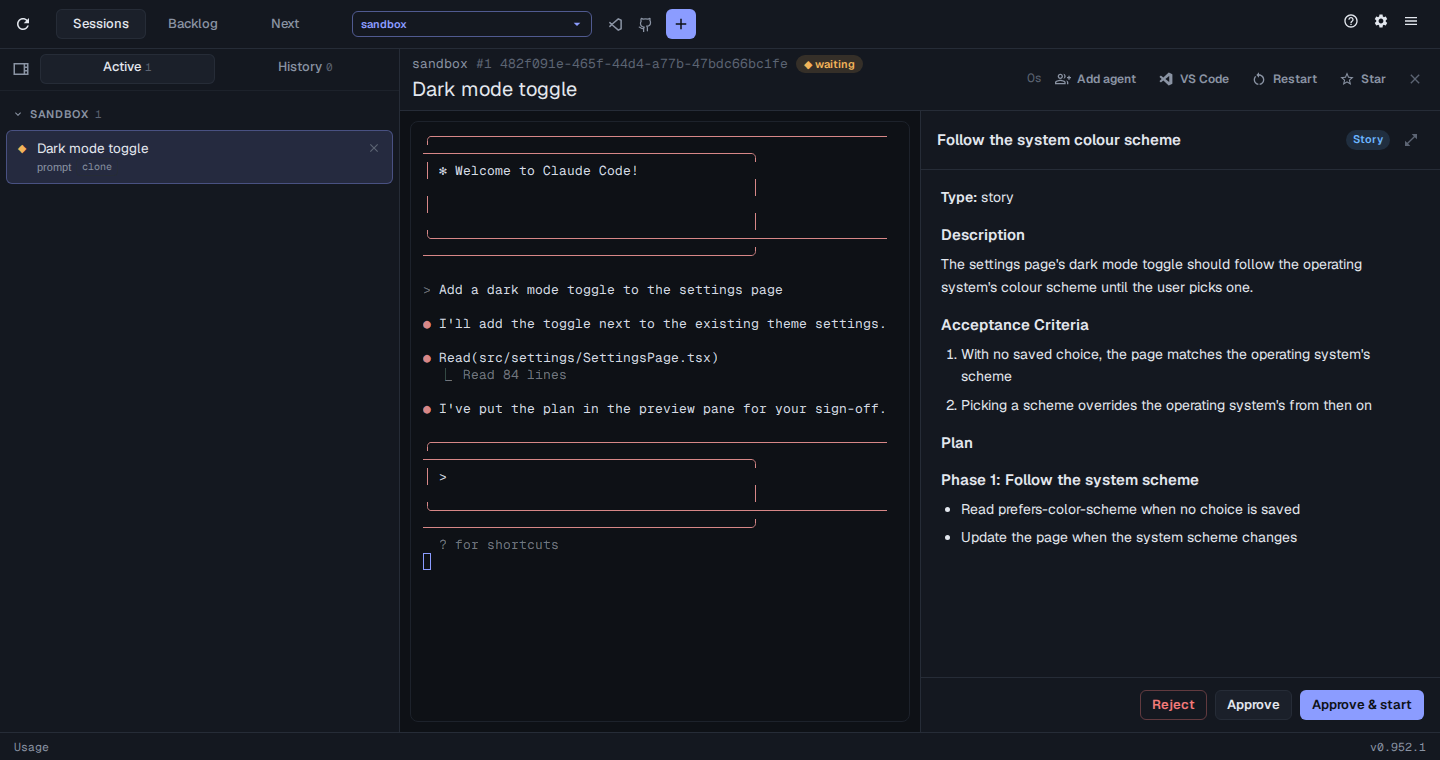
- Approve adds the item to the backlog.
- Approve & start adds it and starts running it in a new session.
Previewing a pull request
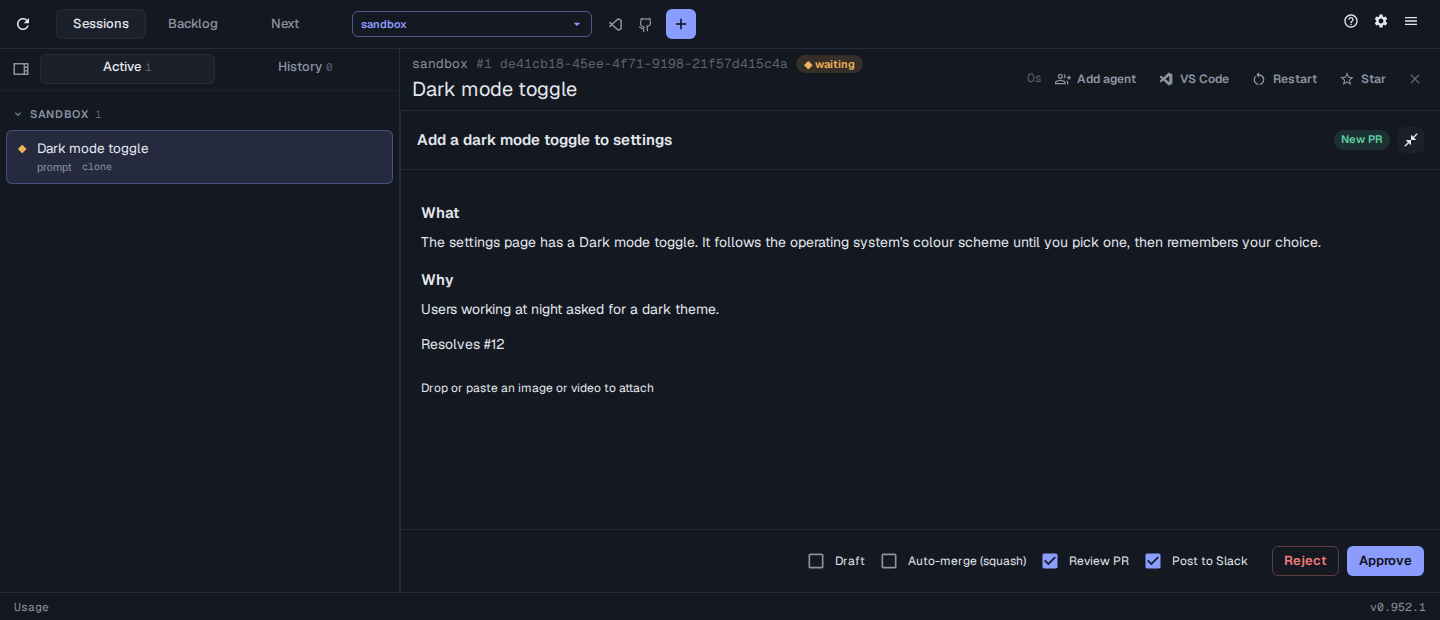
Section titled “Previewing a pull request”When the agent raises or edits a pull request, the title and description open in the pane for you to approve before it goes to GitHub.
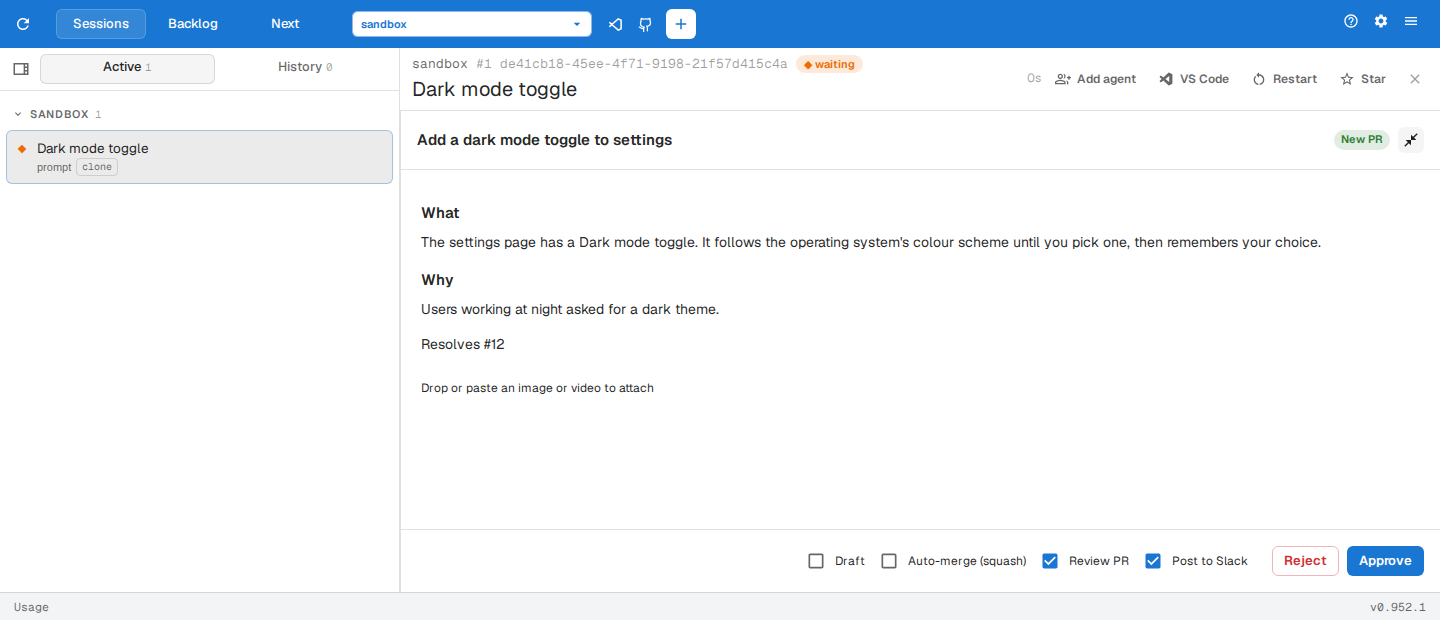
- Drop or paste images onto the pane to attach screenshots to the description, and give each a caption and an optional group.
- Draft raises a new pull request as a draft.
- Auto-merge (squash) squash-merges it once its required checks pass.
- Review PR reviews it once it’s raised, then addresses the findings.
- Post to Slack announces it in Slack at the end.
Issues, issue and pull request comments and Slack posts the agent writes open in the pane the same way, for approval before they are sent.