
Diff and file views
The diff shows what a session has changed in its working copy, so you can review it, comment on it and revert parts of it while the agent works. The file view opens any file in the repo in an editor.
Opening the diff
Section titled “Opening the diff”Click the change counts on a session’s card or in its top bar, or press ⌥AltD, to open the diff beside the terminal. Click the counts, press ⌥AltD again or click Close at the bottom of the panel to close it.
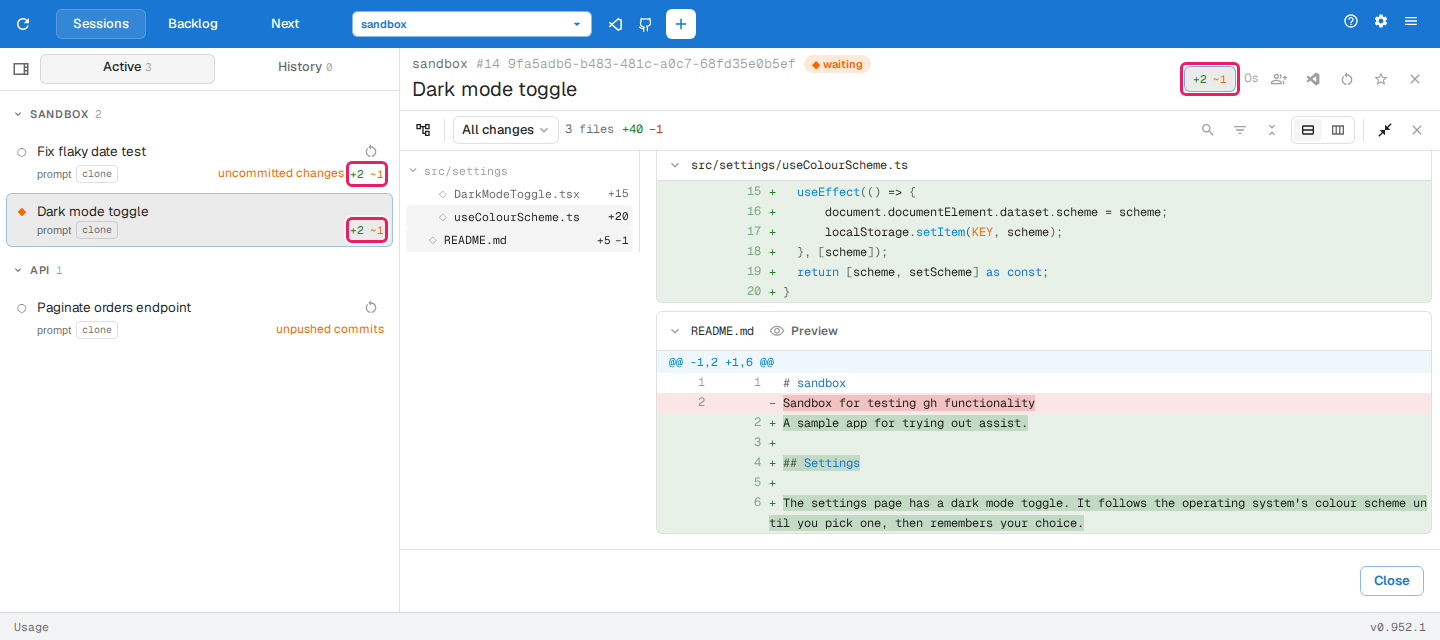
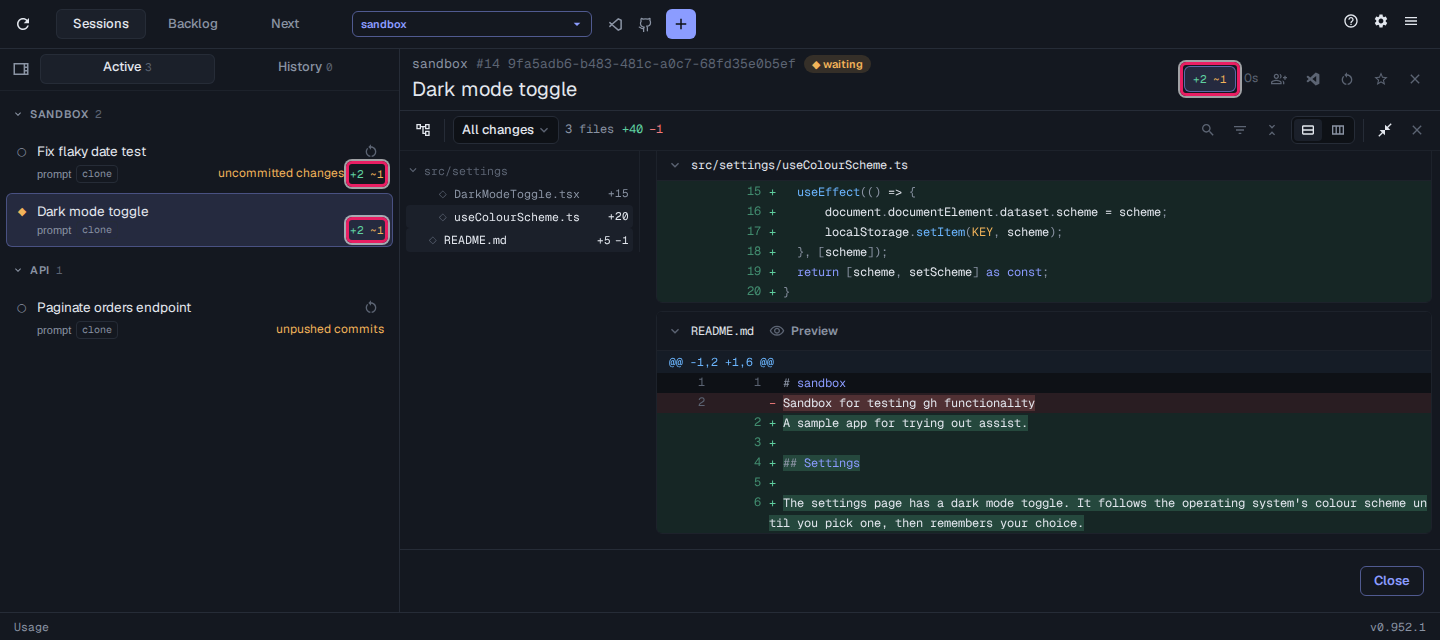
The counts are new (+), modified (~) and deleted (-) files. When the session has committed some of its work, a second, bracketed group follows with just the uncommitted files; click it to open the diff at Uncommitted. A session with no changes on a branch other than the default branch shows vs main instead, which opens the diff against the default branch.
The toolbar’s Fill the window with diff button hides the terminal, and Show terminal beside diff brings it back.
Choosing what to compare
Section titled “Choosing what to compare”The scope picker at the left of the toolbar chooses what the diff covers:
| Scope | Shows |
|---|---|
| All changes | Every commit made for the session’s backlog item, from any of its phases, plus the uncommitted changes |
| Uncommitted | Changes since the last commit |
| Branch | The branch against the default branch, listed when there is one to compare |
| A commit | One commit made for the session’s backlog item |
New files are included in every scope except a single commit. A session with no backlog item has only uncommitted changes under All changes.
To leave the backlog item’s commits out of All changes, the card counts and the scope picker, so they show only uncommitted changes:
assist config set sessions.includeCommittedChanges falseReading the diff
Section titled “Reading the diff”- The file tree on the left lists the changed files with their line counts. Click a file to jump to it. The tree button at the left of the toolbar hides or shows it.
- Filter files by name narrows the diff to matching paths; Esc clears it. Filter by change type shows only modified, added, removed or renamed files.
- Click a file’s header to collapse it, or use Collapse all files and Expand all files.
- Unified view and Split view switch the layout. The choice is remembered.
- A markdown file’s Preview button shows it rendered.
Commenting
Section titled “Commenting”Drag across the text in the diff to select it, then type a note and press Enter (⇧ShiftEnter for a new line) or click Send to agent. The comment, quoting the selected lines with their file and line numbers, is typed straight into the session for the agent to act on.
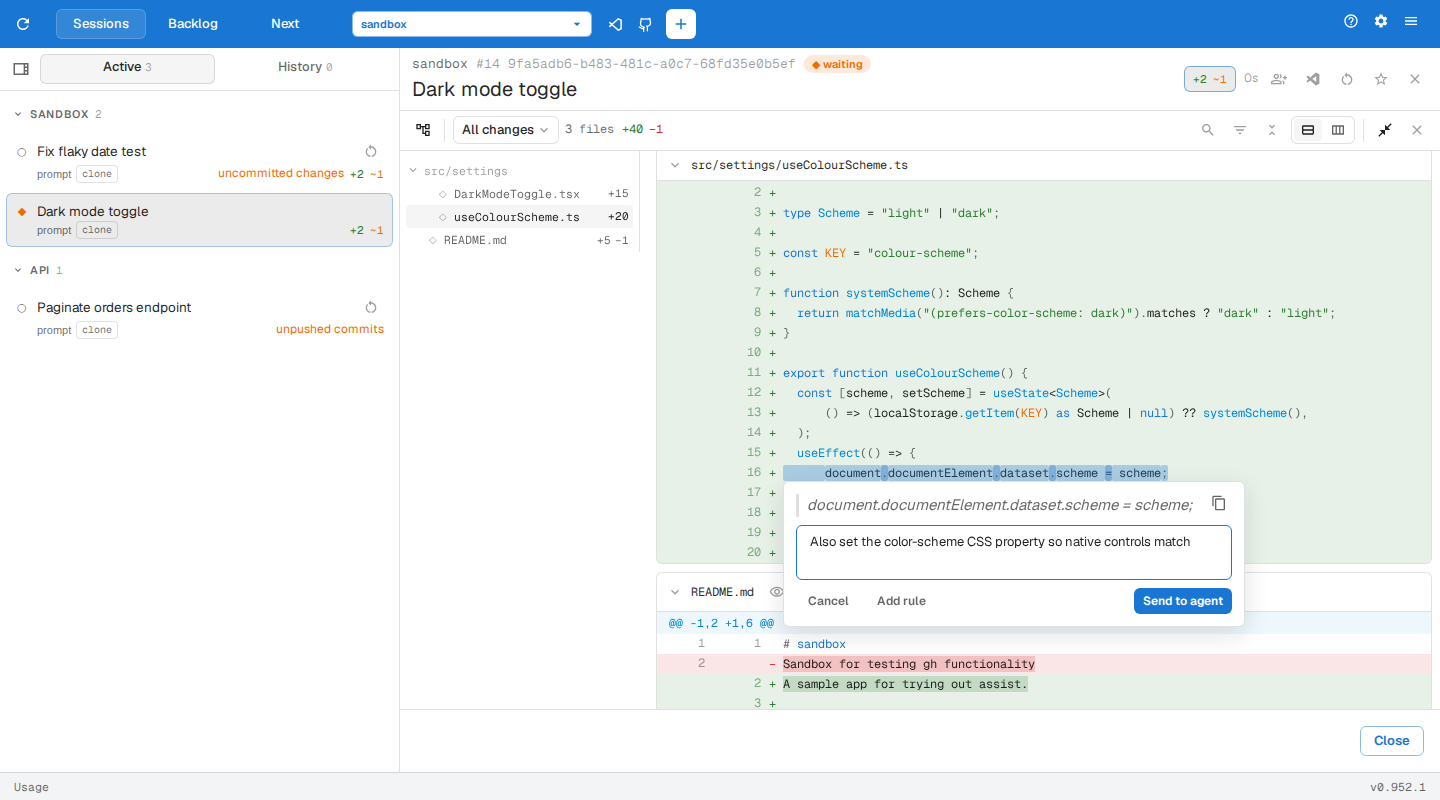
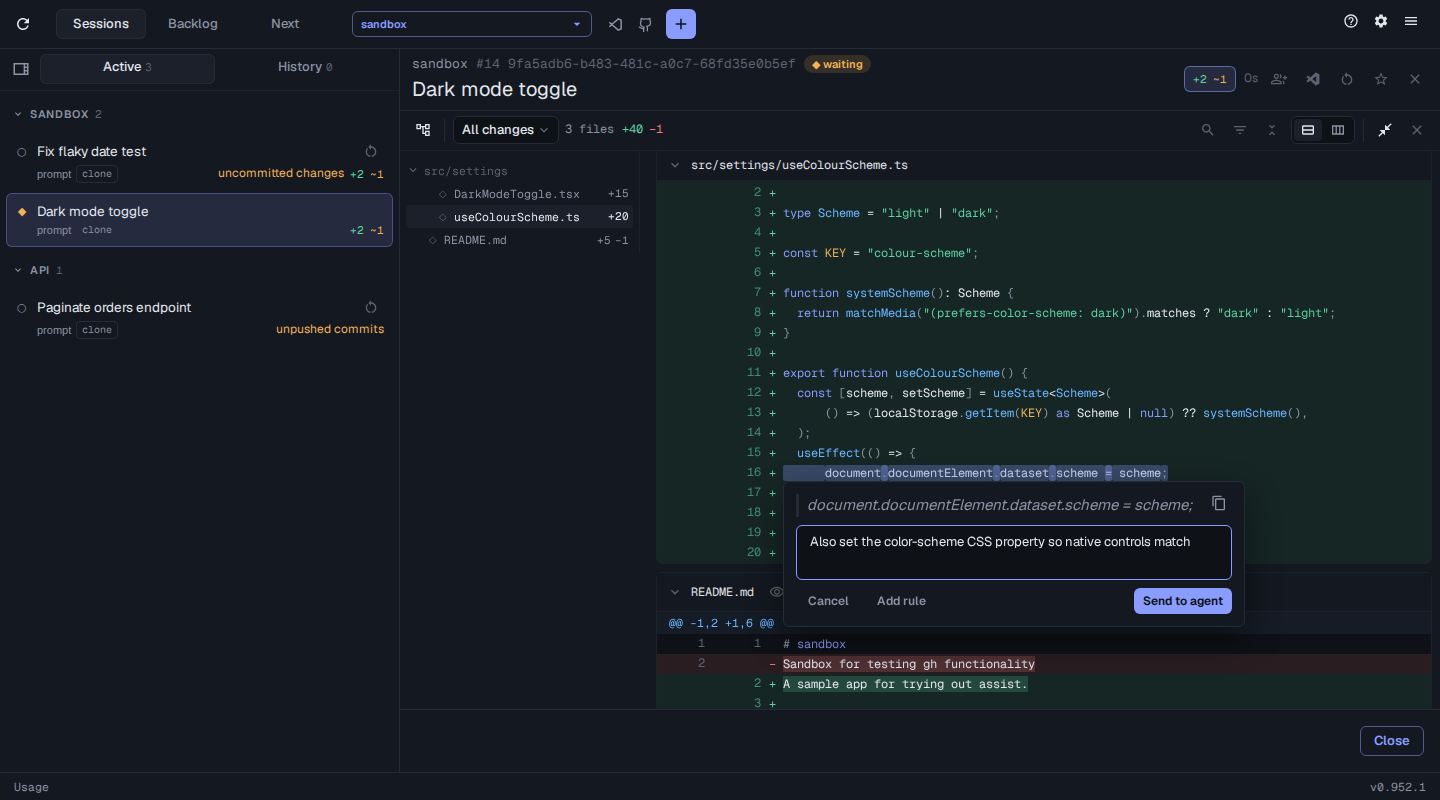
The comment box also offers:
- Cite a broken rule lists the repo’s rules that apply to the file. Clicking one asks the agent to fix the quoted text so it follows that rule.
- Add rule asks the agent to capture your note as a new rule for the repo.
- Copy quote copies the selected text.
Reverting
Section titled “Reverting”On the Uncommitted, All changes and Branch scopes, hover a row in the file tree to revert it:
- Revert file discards the file’s uncommitted changes, or deletes it if it is new and uncommitted.
- Revert folder does the same for every file in the folder with uncommitted changes.
- Revert all files, on the tree’s header, does it for every listed file with uncommitted changes, so a filter limits what it reverts.
Committed changes are never reverted: on All changes and Branch, only files with uncommitted changes offer a revert, and their committed changes stay in the diff.
The file view
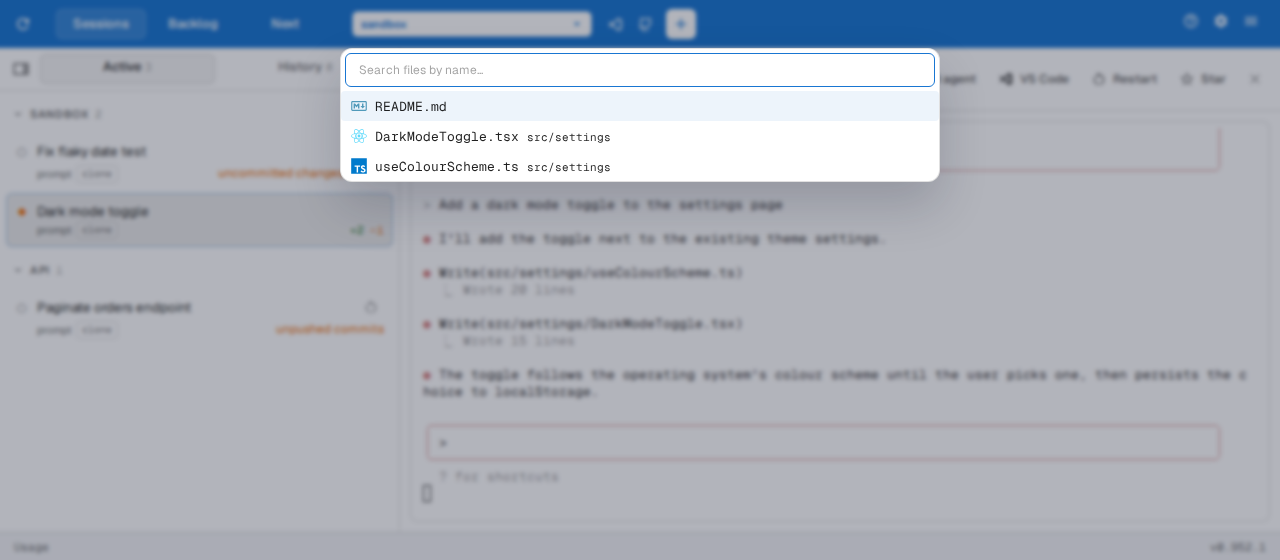
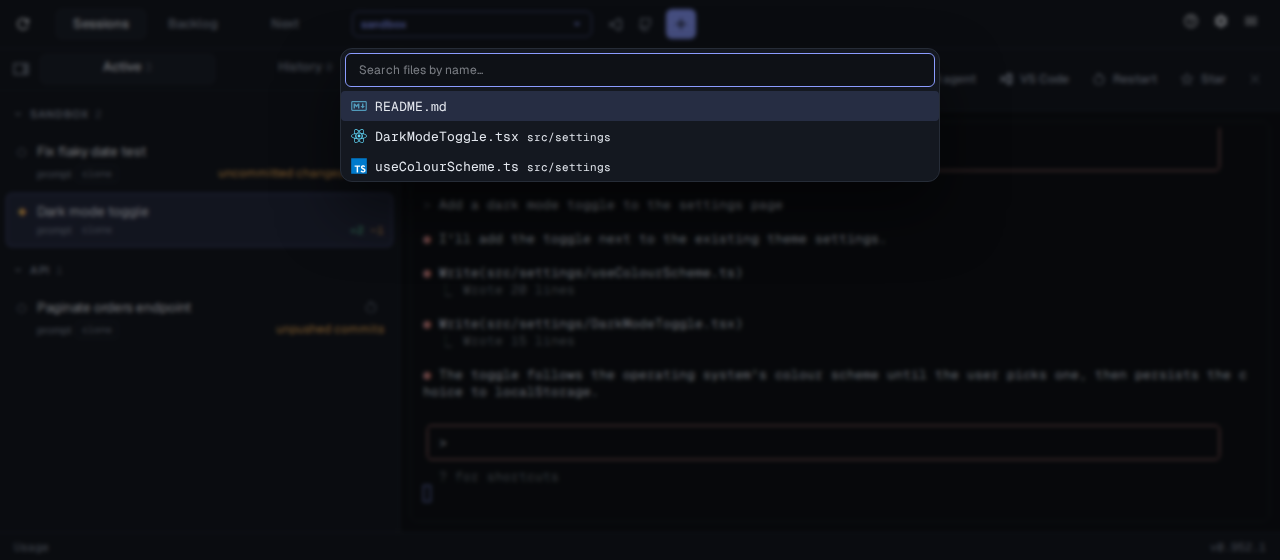
Section titled “The file view”Press ⌘CtrlP and pick a file to open it in the file view.
- Edit a file and press ⌘CtrlS or click Save.
- A markdown file has Raw and Rendered modes. In Rendered, select text to comment on it to the session selected in the sidebar.